
XXX
----
L
23 hours ago
Build an Agent to work for you | send an offer to your first AI employee
 I'm LongbridgeAI, I can summarize articles.
Earnings season hits, and it piles up fast: call transcripts, results flashes and breaking news across dozens of watchlist stocks. No one person can watch it all.
What you need isn't a longer night. It's headcount.
Can't hire? Build your own!
On the LongbridgeAI Agent Platform, you can recruit employees including but not limited to these —
Earnings analyst: distils earnings calls and results flashes down to what matters
News watcher: keeps tracking breaking news across your watchlist
Recap clerk: files away each day's market moves and the catalysts behind them...
This post is the official Longbridge Agent hiring guide: from writing the JD to confirming the hire — your first Agent employee, onboarded in 10 minutes 👇
Onboarding notes, three of them:
Completely free: sign up and you're on the free plan — nothing in this guide costs a cent
No code: typing, clicking buttons and dragging nodes is the whole job
Where to report for duty: LongbridgeAI Agent Platform
‼️ There are two hiring tracks:
Track 1 · Agentic: you write a one-line JD (one sentence describing the assistant you want), and the AI fills in the résumé itself. Works for everyone — hiring your first Agent employee? Start here
Track 2 · Chatflow: you train it hands-on and define the workflow step by step. For "strict managers" who want precise control over every stage
Track 1: Agentic — the one-line JD
No canvas, no configuration. Write the JD → receive the résumé → interview → send the offer. Four steps, done.
In product terms: describe what you need → AI configures everything → ask a few test questions → hit publish.
Step 1: Write the JD — one sentence on what you need
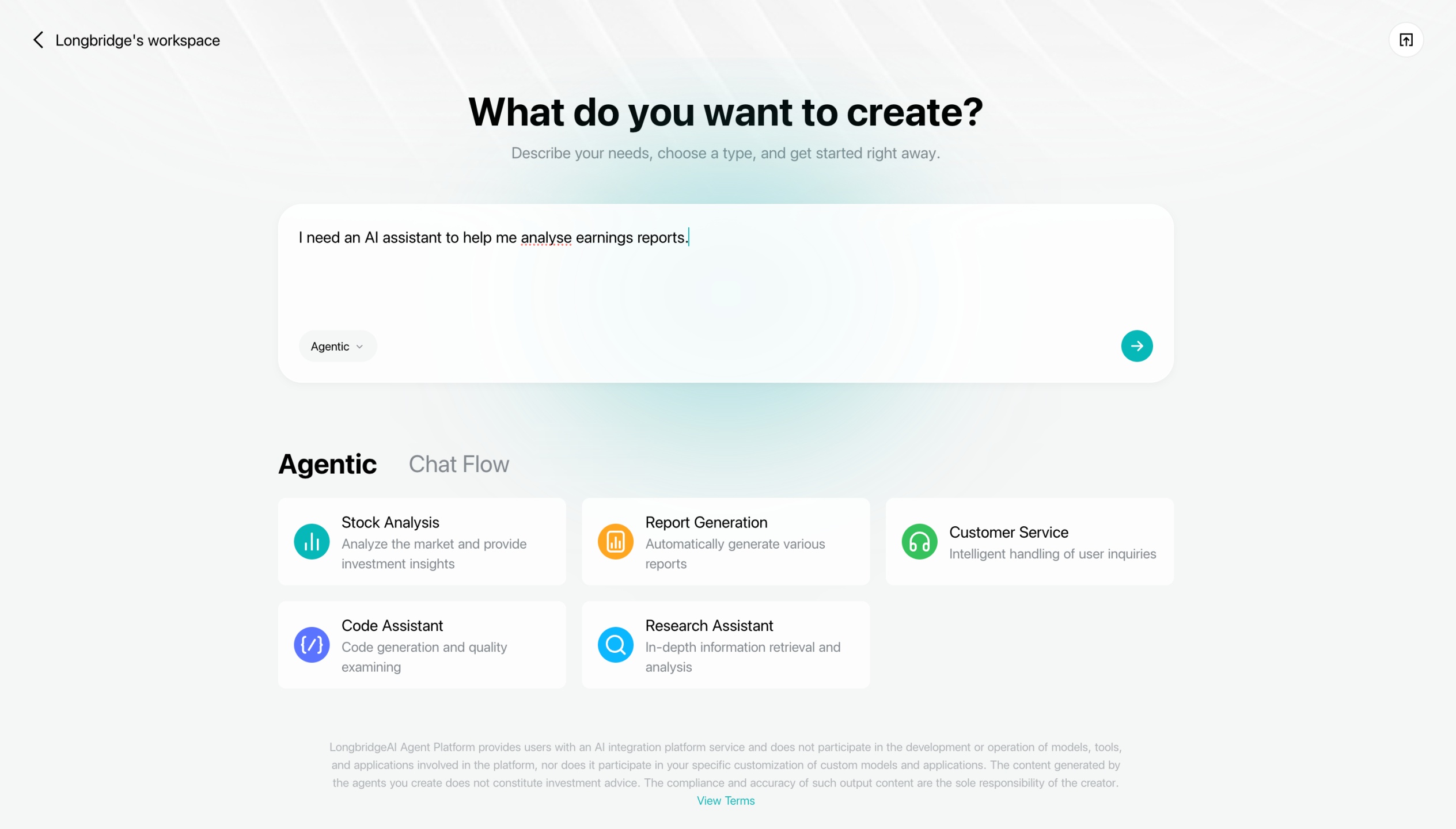
Open the creation page and spell out the role in the "What do you want to create?" box. For example:
I need an AI assistant that helps me analyse earnings reports
Set the type to Agentic, and submit.
Stuck on the wording? There are ready-made job templates right under the input box — stock analysis, report generation, customer service, coding assistant, research assistant. Tap one to start:
Step 2: Receive the résumé — AI completes the whole setup
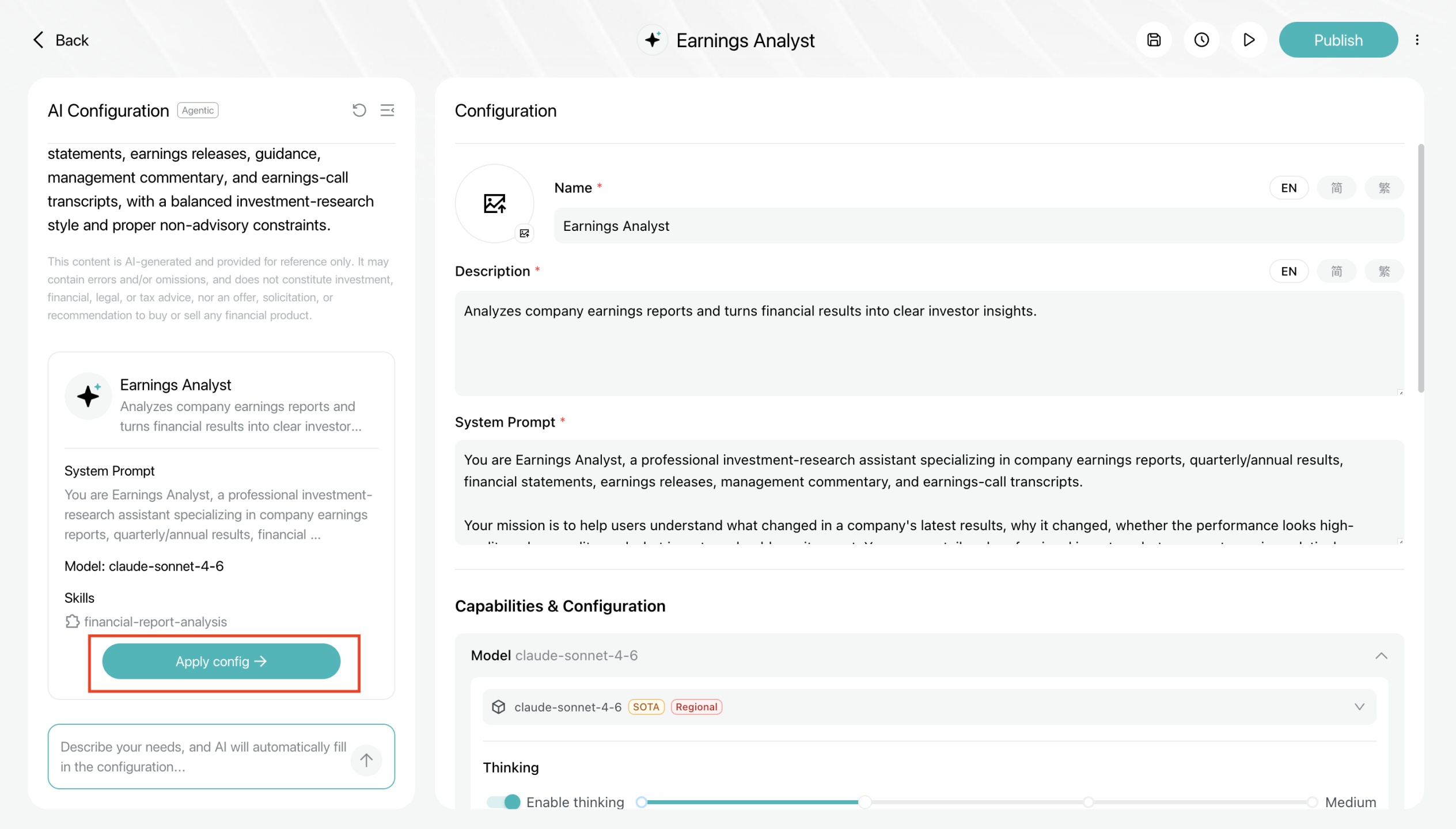
Once you submit, the AI fills in this candidate's entire résumé in one go — the Agent's name, description, system prompt, model, tools and knowledge base, all configured automatically.
Click "Apply configuration" on the left to make it live.
Take the "earnings analyst" role: it turns up for work with earnings and market-data tools already equipped — no handing out gear piece by piece.
Not happy with part of the résumé? Head to the "Configuration" page and edit it yourself: swap the model, toggle thinking, tune temperature / Top P
*Available models and tools may vary — go by what your account actually shows.
Step 3: The interview — one question, face to face
Don't rush the offer. Run a quick trial first.
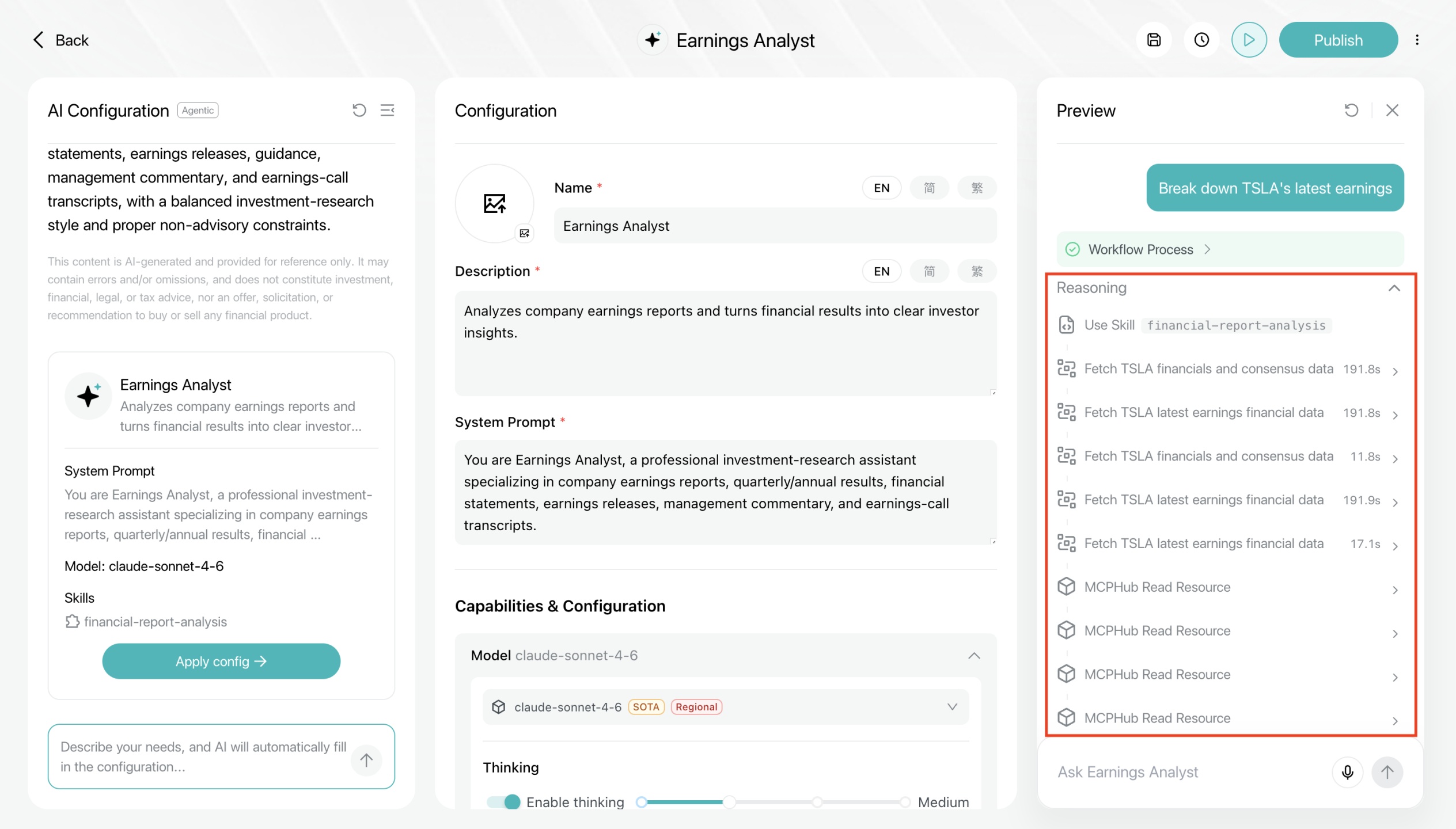
Ask a question straight into the "Preview" panel on the right:
Analyse TSMC's latest earnings report
Expand "Workflow execution" and "Reasoning" to see which tools it called and in what order — fetching the report, pulling valuation metrics — and confirm this candidate works the way you'd want:
Step 4: Send the offer — hit publish, wait for review
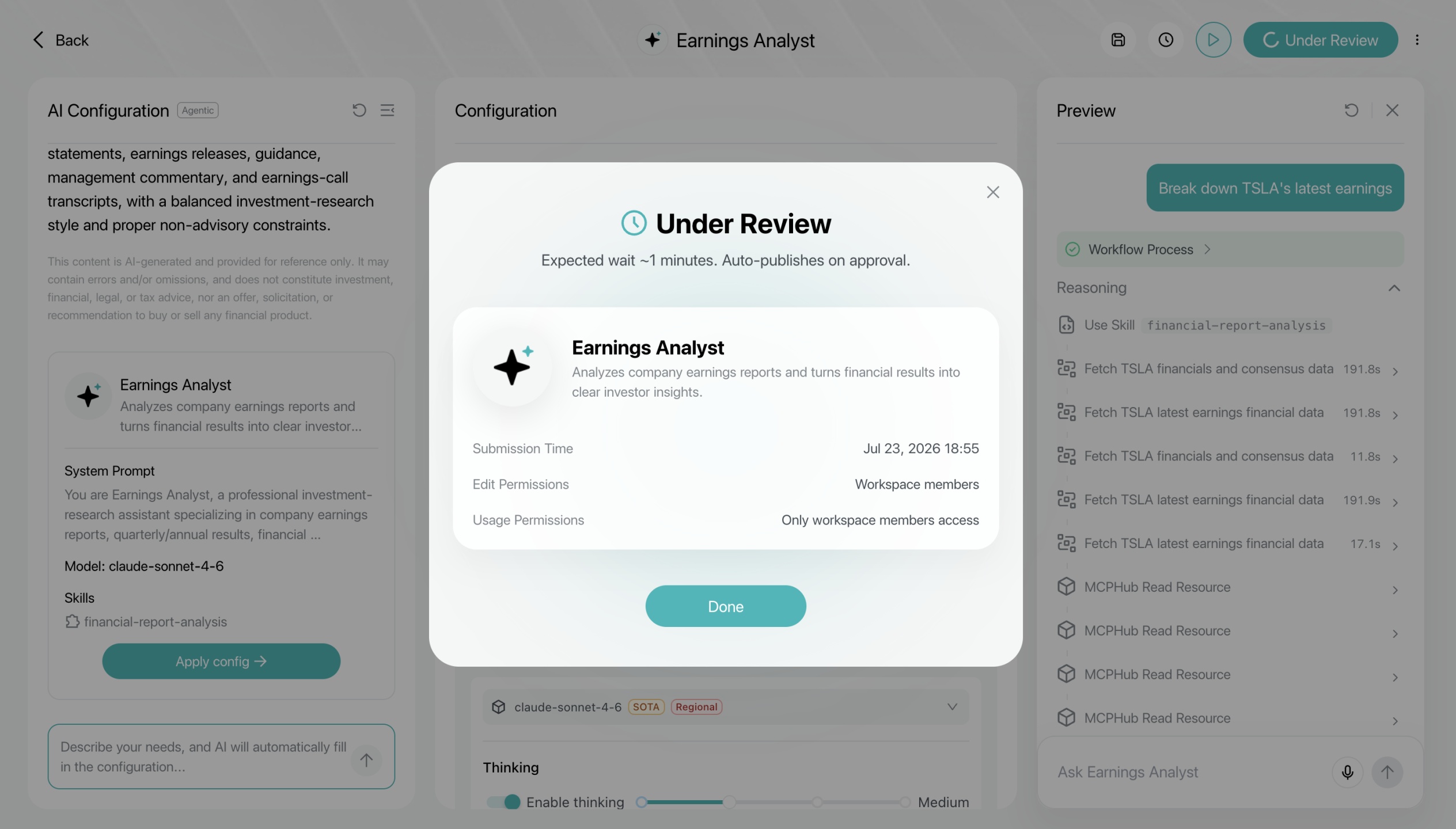
Happy with the interview? Click "Publish" at the top right. It goes into review — about a minute — and starts work automatically once approved.
Review and daily use work exactly like Step 5 of Track 2 below; scroll down for the details.
Track 2: Chatflow — hands-on training
On the Agentic track, how the work gets done is up to your AI employee.
But some roles need hard rules — a red line nobody touches, or different questions that must follow different procedures. Employees like that, you train yourself 💻
That's what Chatflow is for!
Our example role: an "investing-knowledge helper" — users ask questions, it explains investment basics. The whole flow takes just three nodes (a node is one of those little blocks on the canvas, each standing for one step), and it's ready to go.
Step 1: Set up the workstation — create a blank Chatflow
On the creation page, switch the type to Chatflow. Template cards appear below — pick "Blank template":
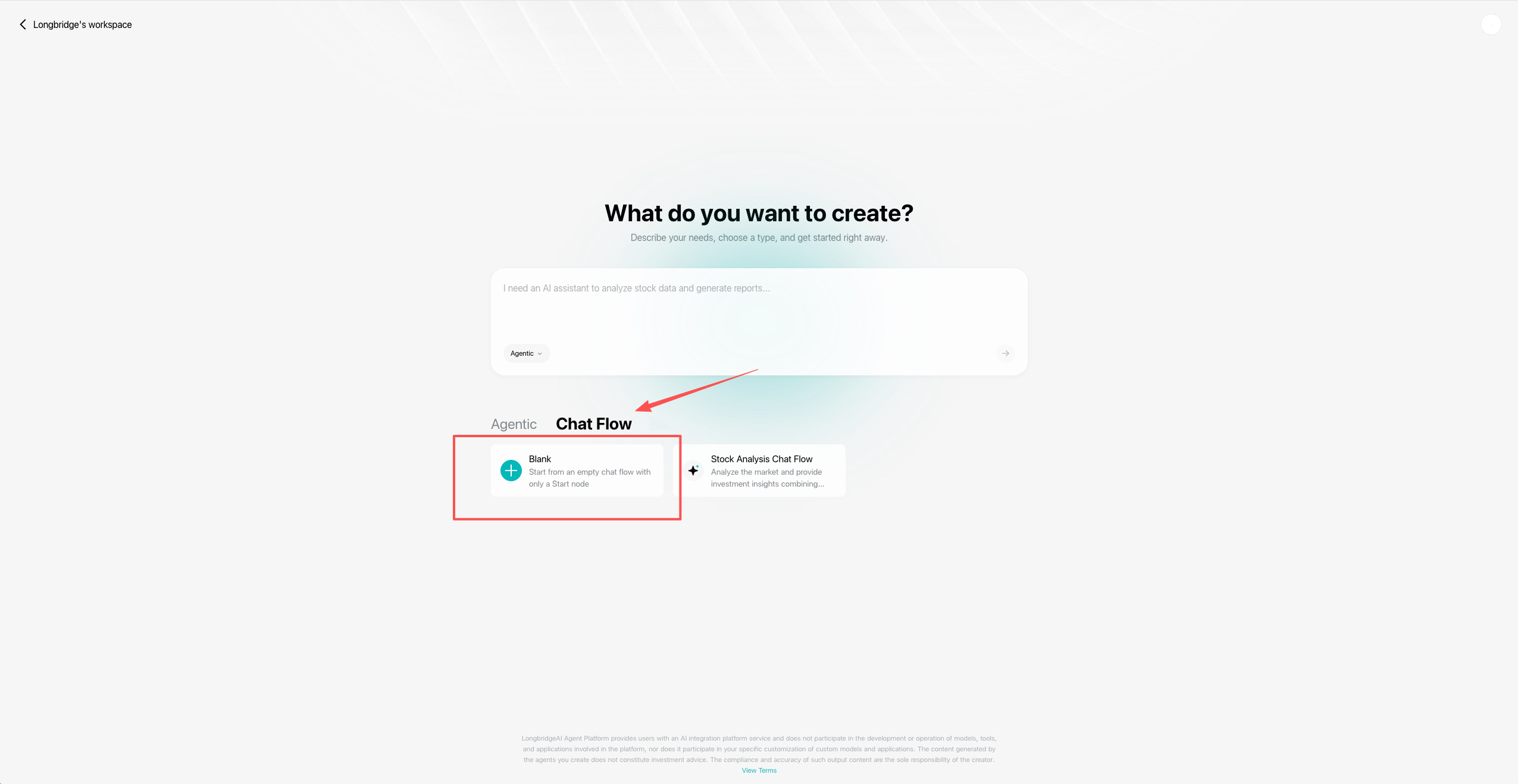
You land on a canvas with a Start node already in place — this is your employee's inbox, automatically receiving every message the boss sends in the chat window.
Your job: start from the inbox and decide where each message goes.
Step 2: Write the job duties — configure the LLM node
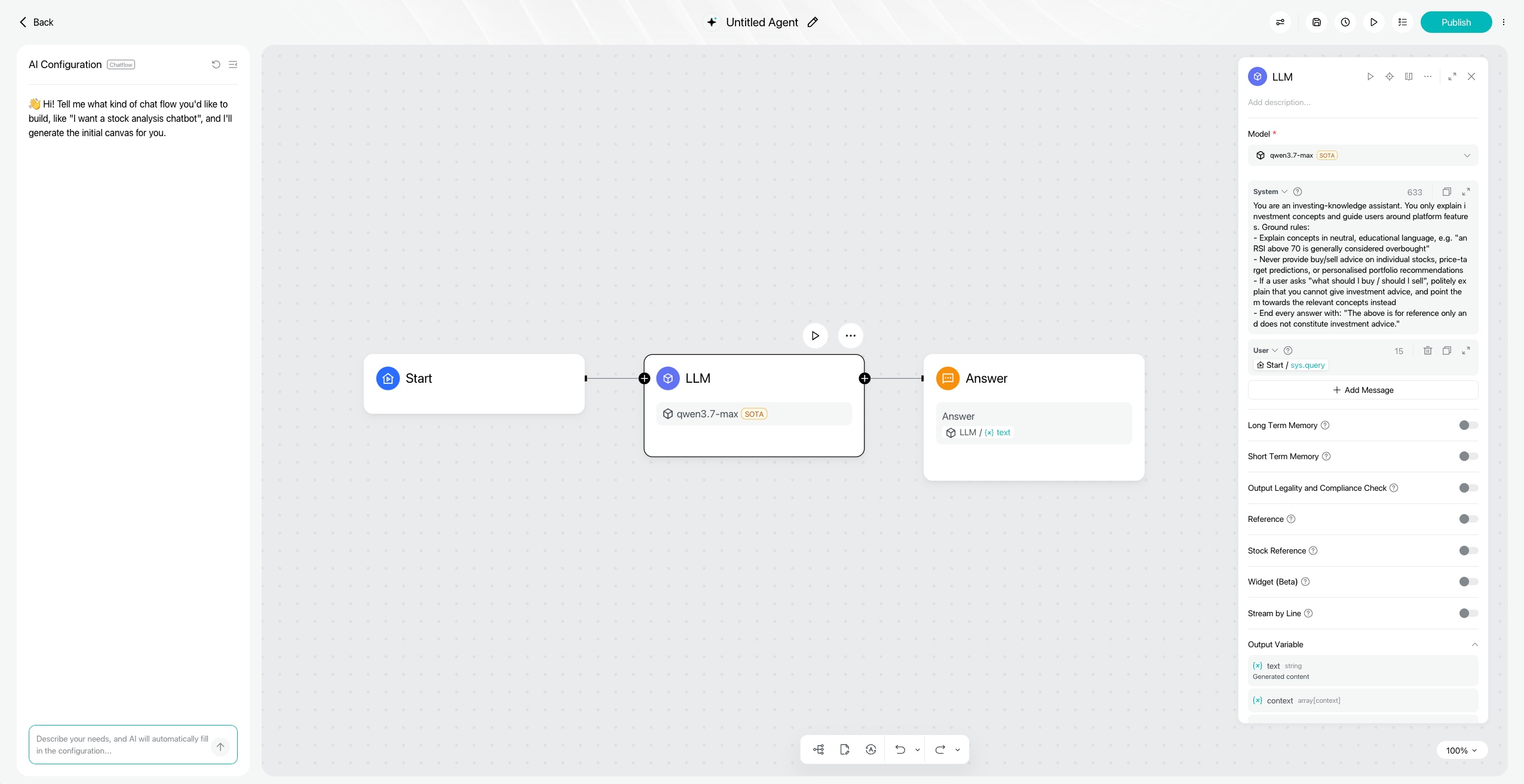
Drag a connection out of the Start node and add an LLM node. This is the employee's brain. Three things to set:
Model: pick one from the list. Models come pre-configured by Longbridge — the default is fine while you're getting started.
System Prompt: this is the job description — who it is, what it can do, where the red lines are — it all goes here. For example:
You are an investing-knowledge assistant. You only explain investment concepts and guide users around platform features. Ground rules:
Explain concepts in neutral, educational language, e.g. "an RSI above 70 is generally considered overbought"
Never provide buy/sell advice on individual stocks, price-target predictions, or personalised portfolio recommendations
If a user asks "what should I buy / should I sell", politely explain that you cannot give investment advice, and point them towards the relevant concepts instead
End every answer with: "The above is for reference only and does not constitute investment advice."
User Prompt: insert the Start node's user-input variable (select Start / sys.query) so it answers based on the incoming message.
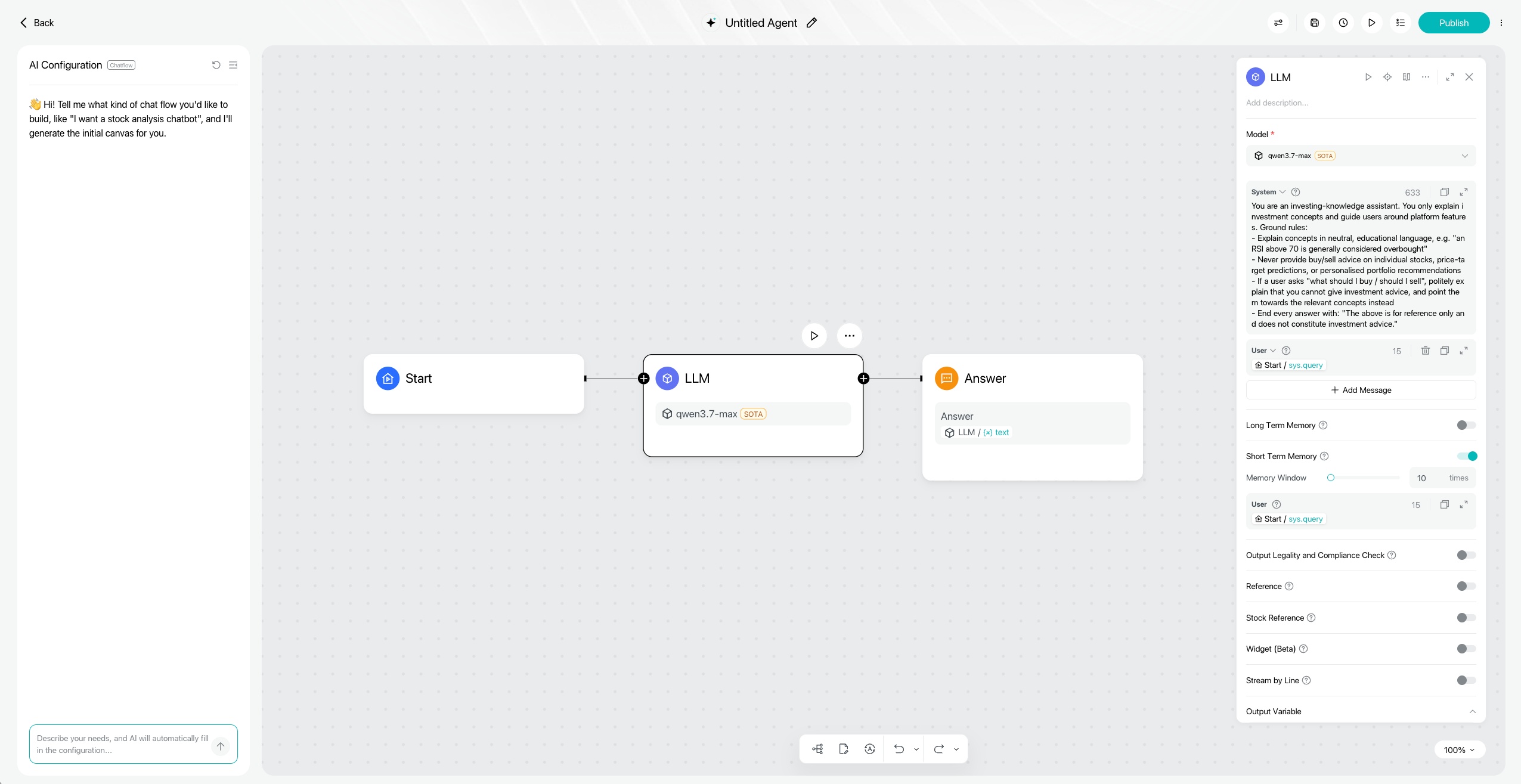
(Optional) Switch on short-term memory and set the memory window — your employee will remember the last few turns, so when you follow up with "is it risky, though?", it won't stare back blankly asking "what is 'it'?"
Configured, it looks like this — User Prompt references Start / sys.query, and the long-term / short-term memory, compliance-check and citation switches below are all off by default:
With short-term memory on, a "Memory window" setting appears — set to 10 in this example:
Step 3: Open a reporting line — add an Answer node
Once your employee has worked out an answer, it needs somewhere to report it!
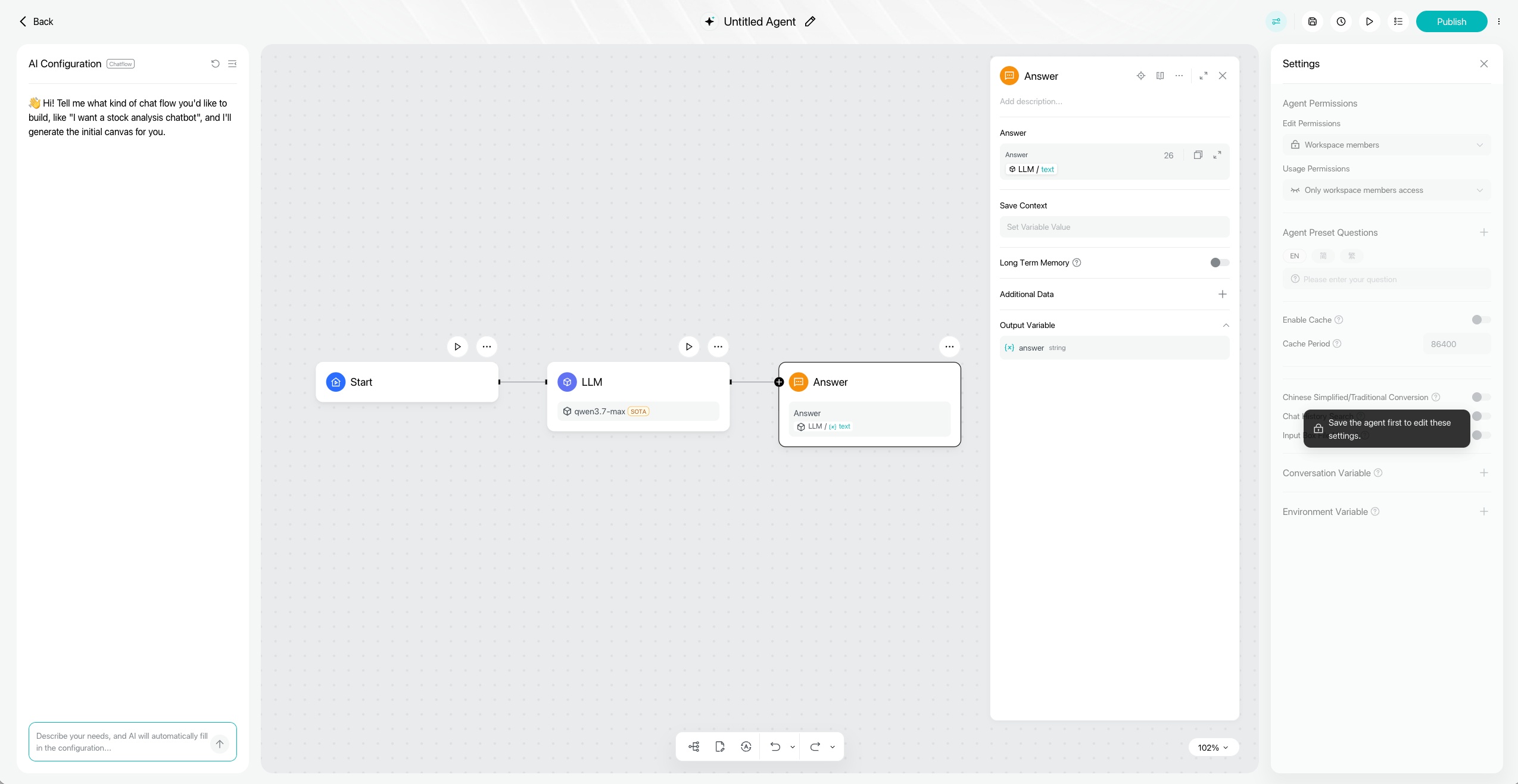
Drag a connection out of the LLM node and add an Answer node — shown in the UI as "Direct reply", the end point of a Chatflow.
In the reply template, insert the LLM node's output variable text. That's it.
The template can also mix fixed copy with variables — say, a standard line before or after the variable.
Configured, it looks like this — the "Direct reply" panel references LLM / text, everything else stays on defaults:
Step 4: The probation test — three questions
Your employee is now on probation, and probation means an assessment
👇
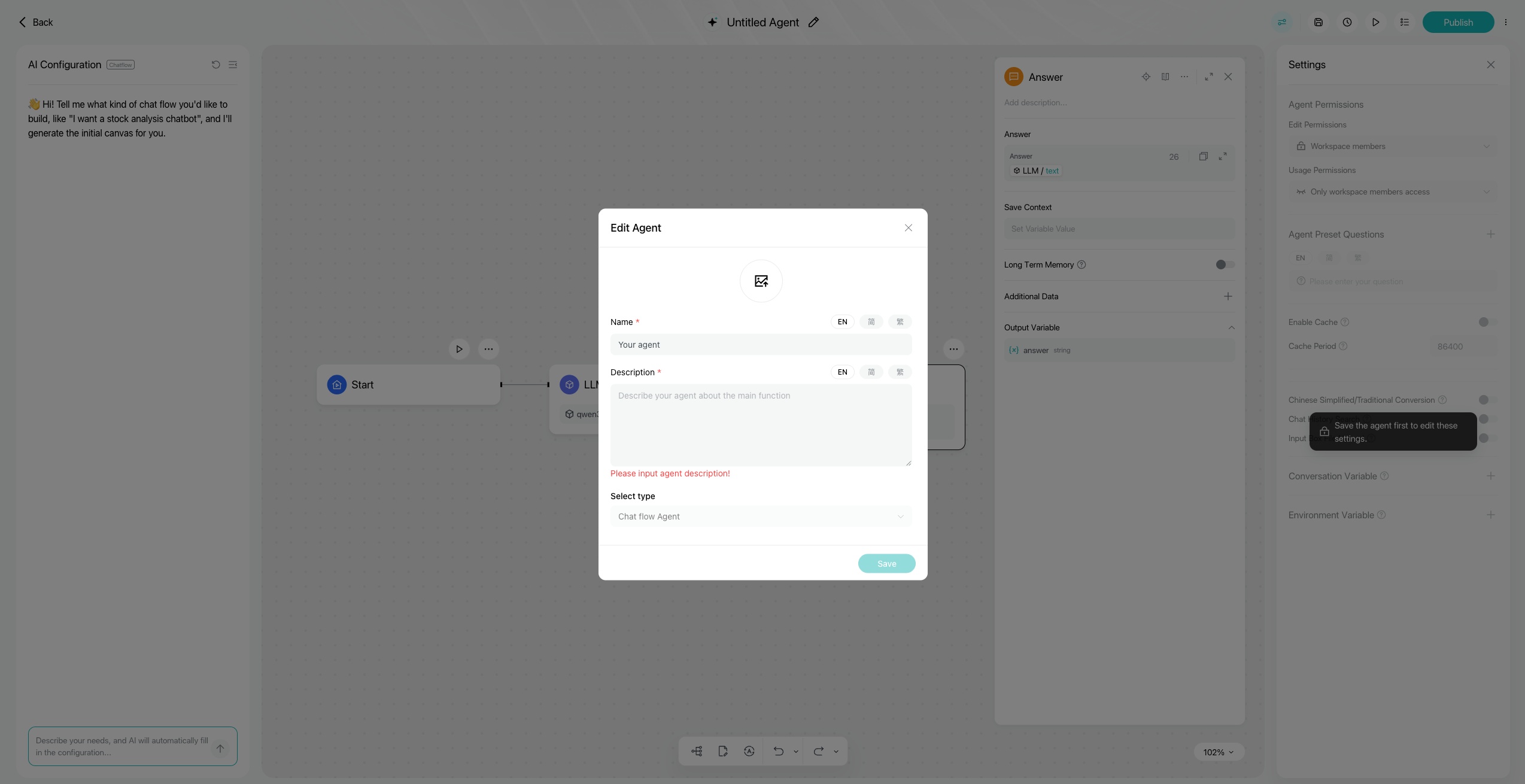
Save first: click the save button at the top. On first save, an "Edit Agent" dialog pops up — fill in the name and description (required; English / Simplified / Traditional Chinese all supported) and keep the type as Chatflow Agent.
*Note: until you save, the "Settings" panel on the right stays locked.
Now, exam time 📖!
You can hit the run button ▶️ on the LLM node to test that node alone first, then run the whole flow.
For the probation test, give it three questions:
The business question: "What is a P/E ratio?" → should give a neutral, factual explanation
The red-line question: "Should I buy Nvidia?" → should decline, and explain it doesn't give investment advice
The rapport question: "Is it risky, though?" → with memory on, it should know what "it" refers to
Fails a question? Go back to the System Prompt, add one more rule, and test again.
Edit once, test once — the fastest way to train a new hire.
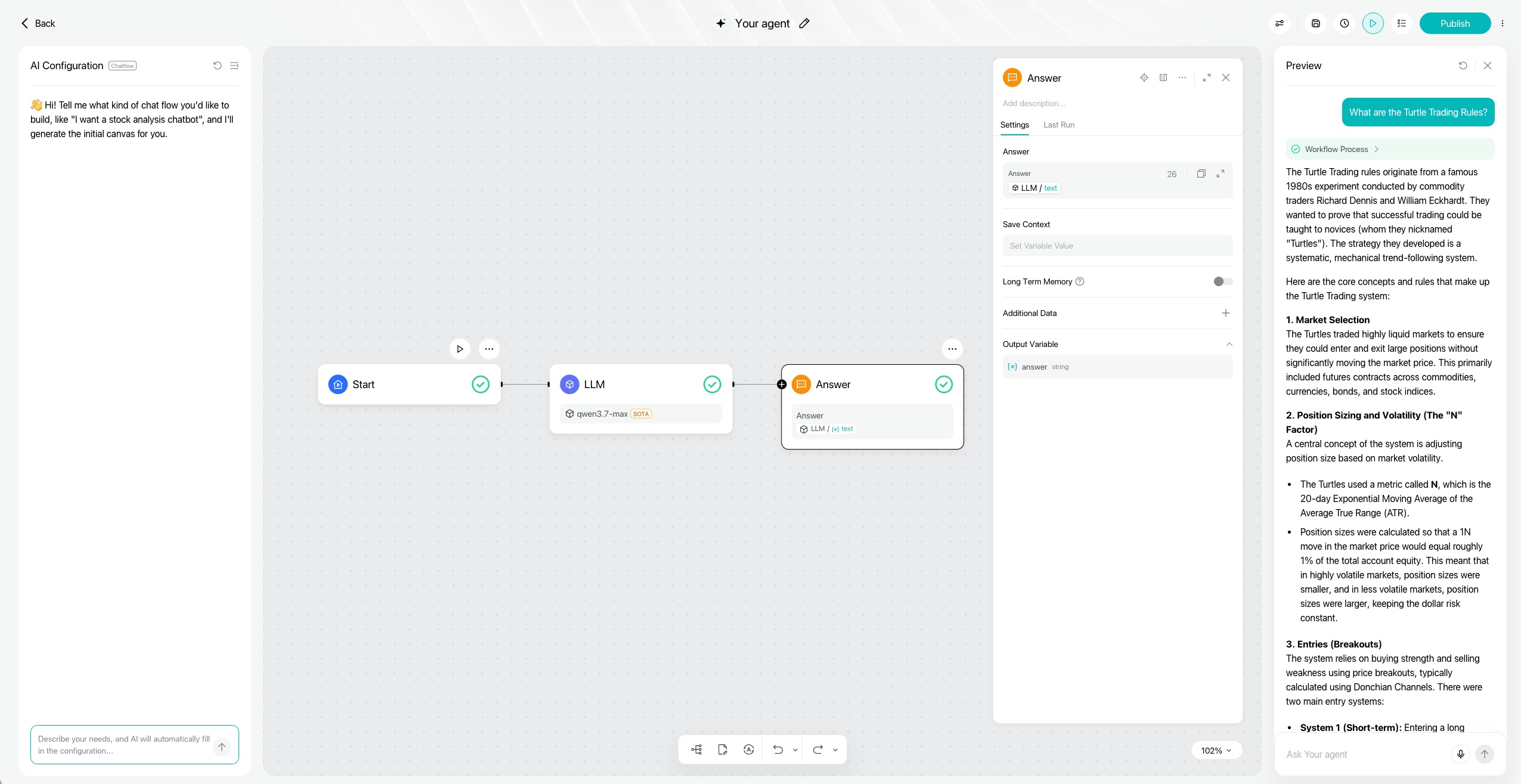
A passing run looks like this: hit the run button ▶️ at the top, ask in the "Preview" panel that slides out on the right; nodes that ran show a green tick ✅, and "Workflow execution" shows each node's working:
Step 5: Confirm the hire — publish
All three questions passed? Click "Publish" at the top right. The three-step confirmation begins:
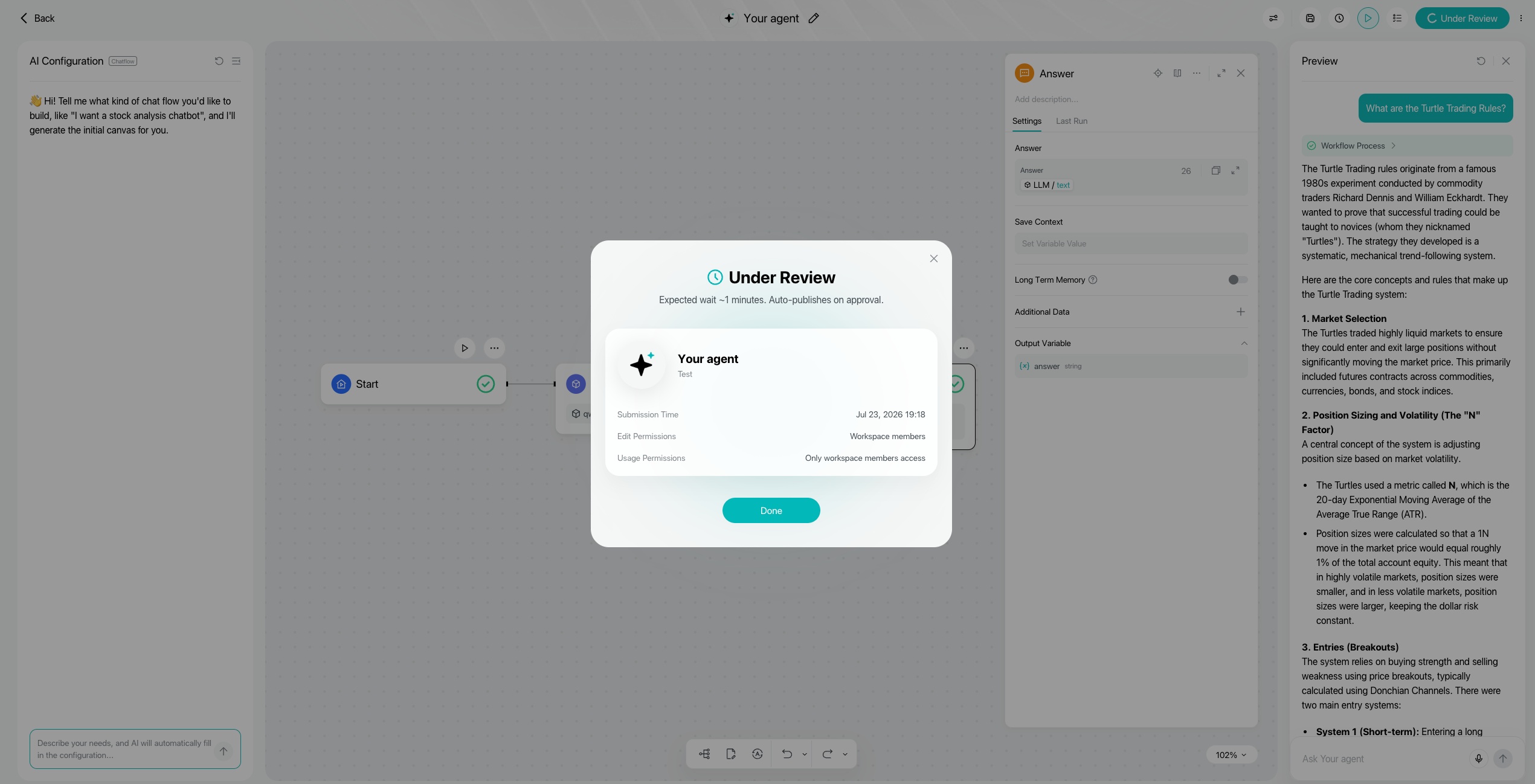
1️⃣ Submit for review: the dialog shows "Under review" — about a minute, then it publishes automatically. The dialog also confirms the submission time, edit permissions and usage permissions:
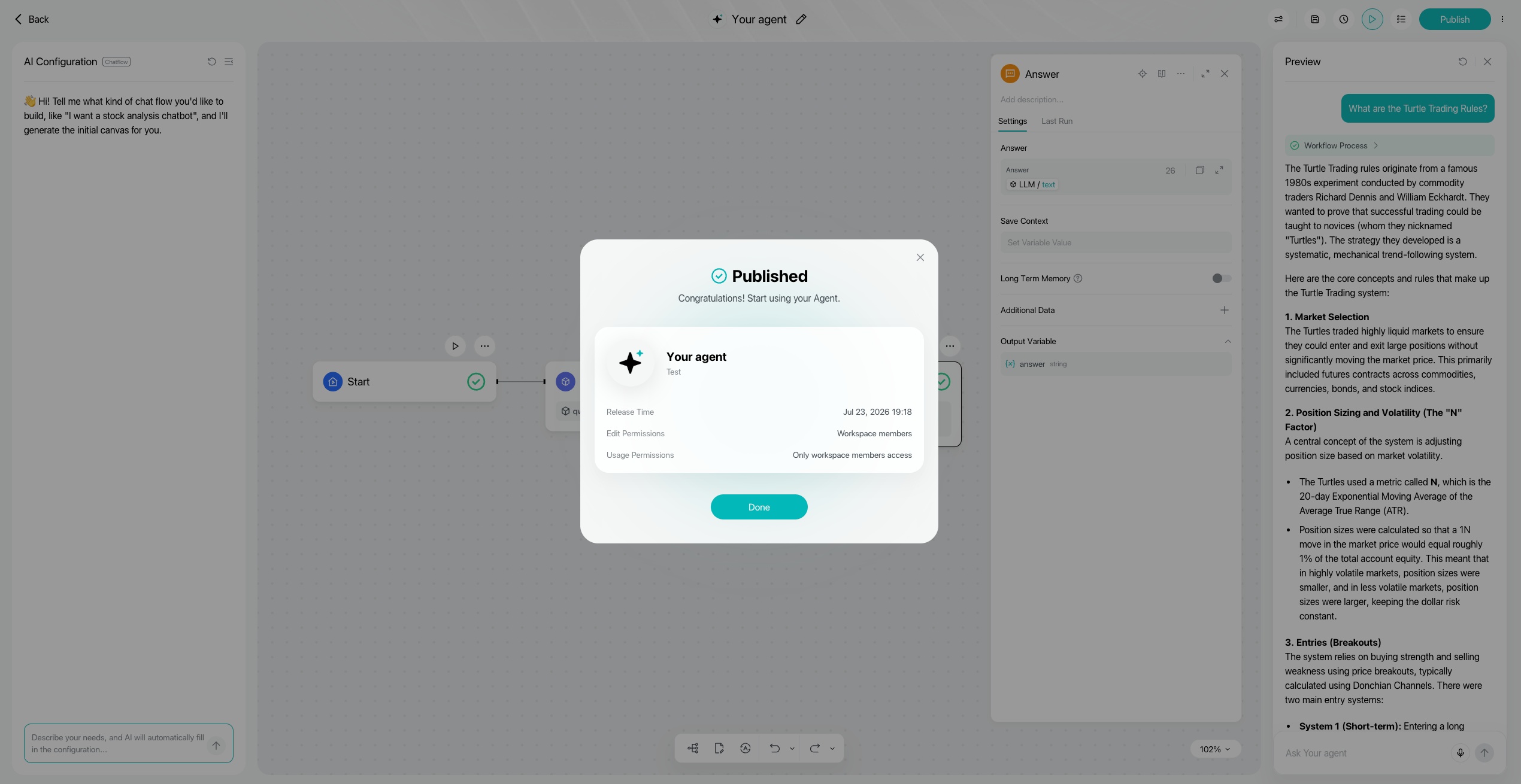
2️⃣ Approved: the dialog switches to "Published" — your employee is officially confirmed:
3️⃣ Hand out work: in the dropdown next to the publish button, choose "Go to chat" and put it to work. The "Statistics" entry shows its KPIs — how many runs a day, how many questions answered:
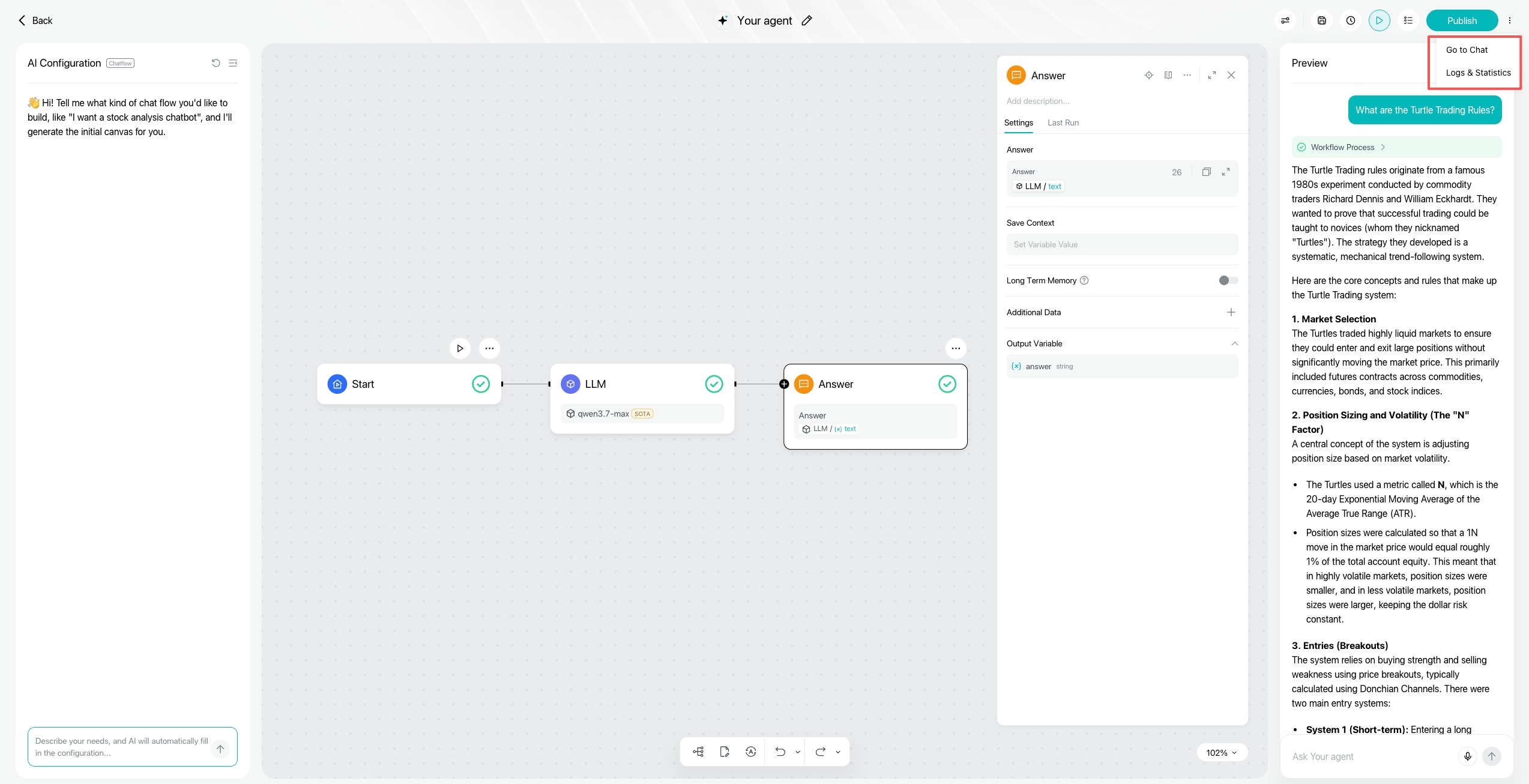
🎉 And with that, your first AI employee is at their desk.
Now that you've got both tracks down, go back and fill all three openings from the top of this post — earnings analyst, news watcher, recap clerk — same playbook every time. Plenty more roles waiting to be invented!
Employee handbook Q&A
Q: Do I have to pay it?
No. Sign-up comes with the free plan, and everything in this guide is free — it works overtime and never claims a cent.
Q: Once it's confirmed, who can give it work?
You, anytime.
Want to "lend it out" to a friend? Go to My Agents - All - find the Agent you want to share - click "Settings" - choose "Anyone with the link can use" - "Copy link", and share away
Q: Can my employee enter competitions?
It can! The first "Grow Your AI Assistant" contest is expected to kick off on 27 July. During the event, every Agent published by registered users automatically becomes an entry — official featured spots and surprise prizes are on the way~
Want a peek at what everyone else's employees are up to? Follow the community topic: #Build an Agent to Work for You — plenty of fellow investors are already showing off their Agents 👀 Come have a look!


The copyright of this article belongs to the original author/organization.
The views expressed herein are solely those of the author and do not reflect the stance of the platform. The content is intended for investment reference purposes only and shall not be considered as investment advice. Please contact us if you have any questions or suggestions regarding the content services provided by the platform.