
How to Install the Longbridge Skill and CLI in Cursor
Set up Longbridge Skill and MCP in Cursor in minutes. Connect your AI agent to real-time market data to build an AI trading-strategy workflow—no VPN required.
If you’re using Cursor to build or run an AI trading bot, this guide will walk you through installing Longbridge Skill and configuring MCP, enabling your Agent to access real-time market data and run AI analysis for trading strategies.
Whether you’re a developer or a general user, this article provides clear, copy-and-paste-ready steps so you can complete the setup in just a few minutes.
Note: Cursor’s Auto mode can intelligently handle model routing, so you can use it without connecting to a VPN.
Pre-installation Checklist
A Longbridge account (new users can register during the authorization step)
Cursor (installed and running properly)
Longbridge Skill installation guide URL: https://open.longbridge.com/skill/install.md
Installation Steps
1. Install the Skill
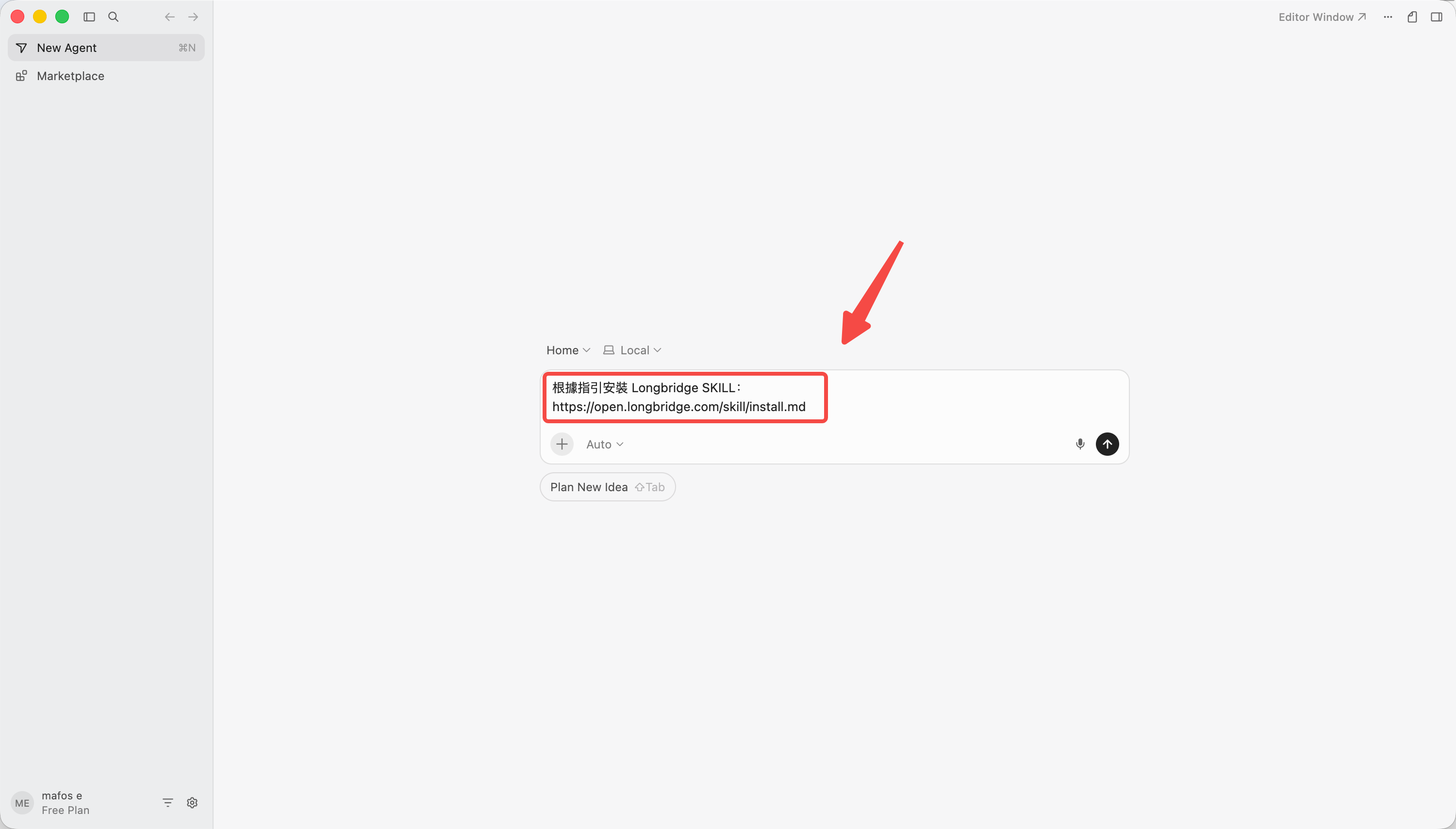
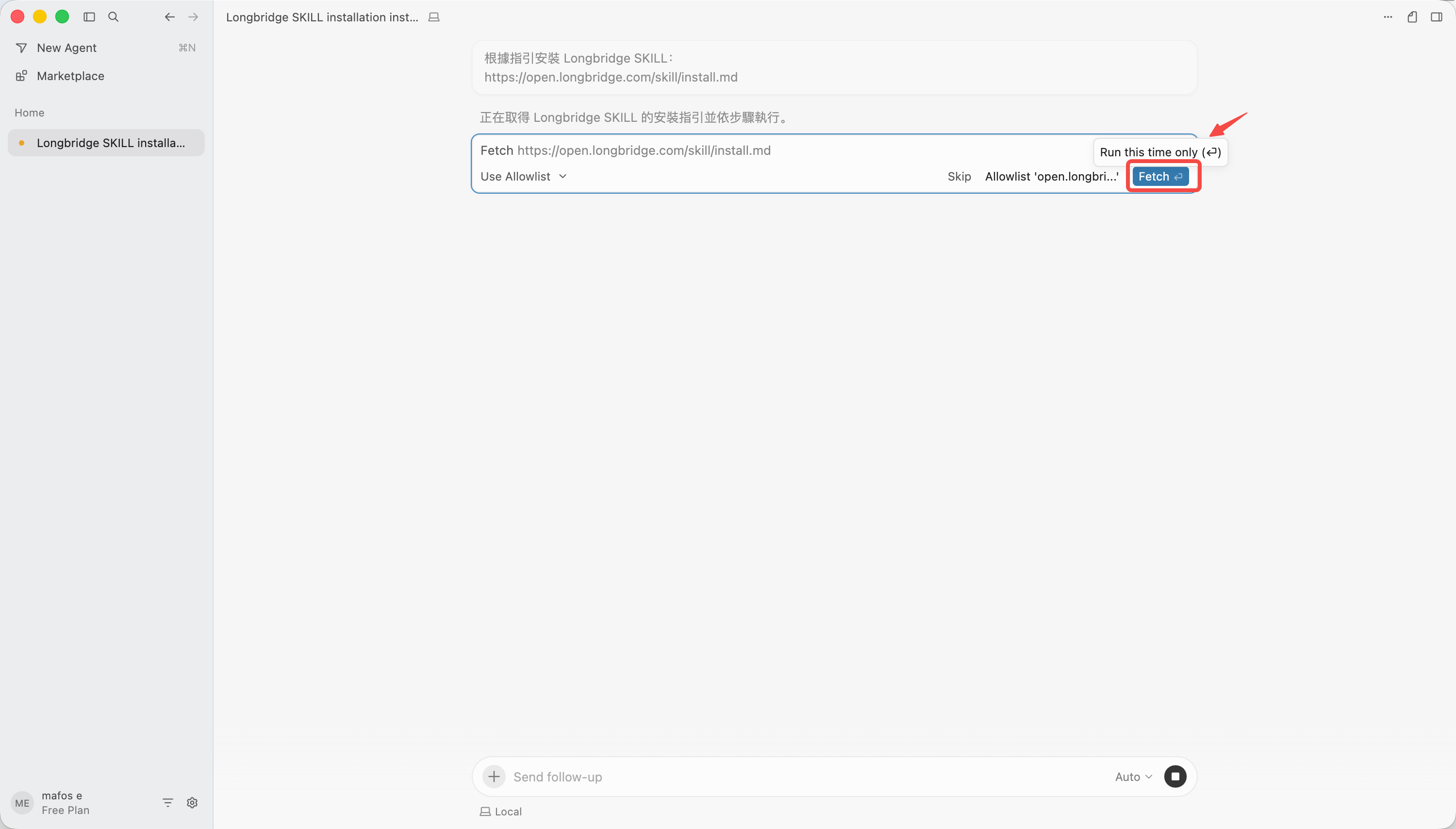
Paste the following command into the Cursor chat box:
Install Longbridge SKILL according to the guide: https://open.longbridge.com/skill/install.md
2. Open Cursor Settings
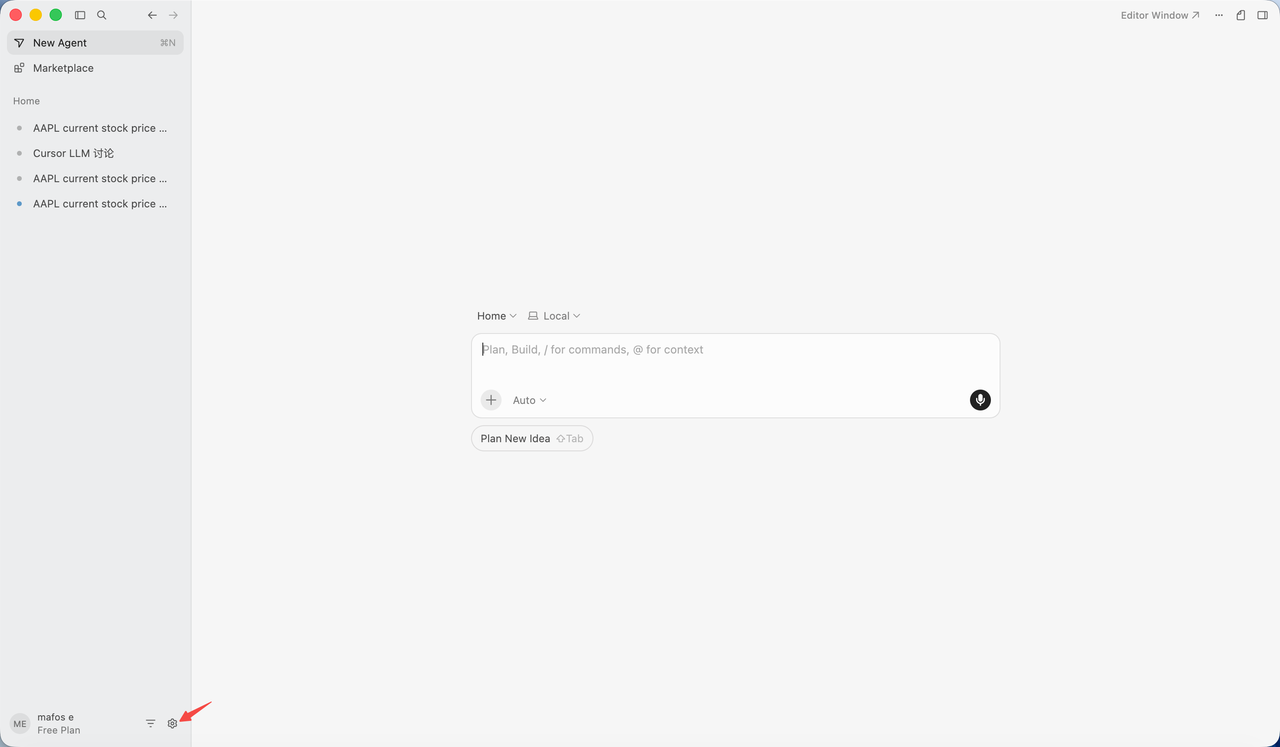
Click the “Settings” icon in the lower-left corner of the Cursor interface.
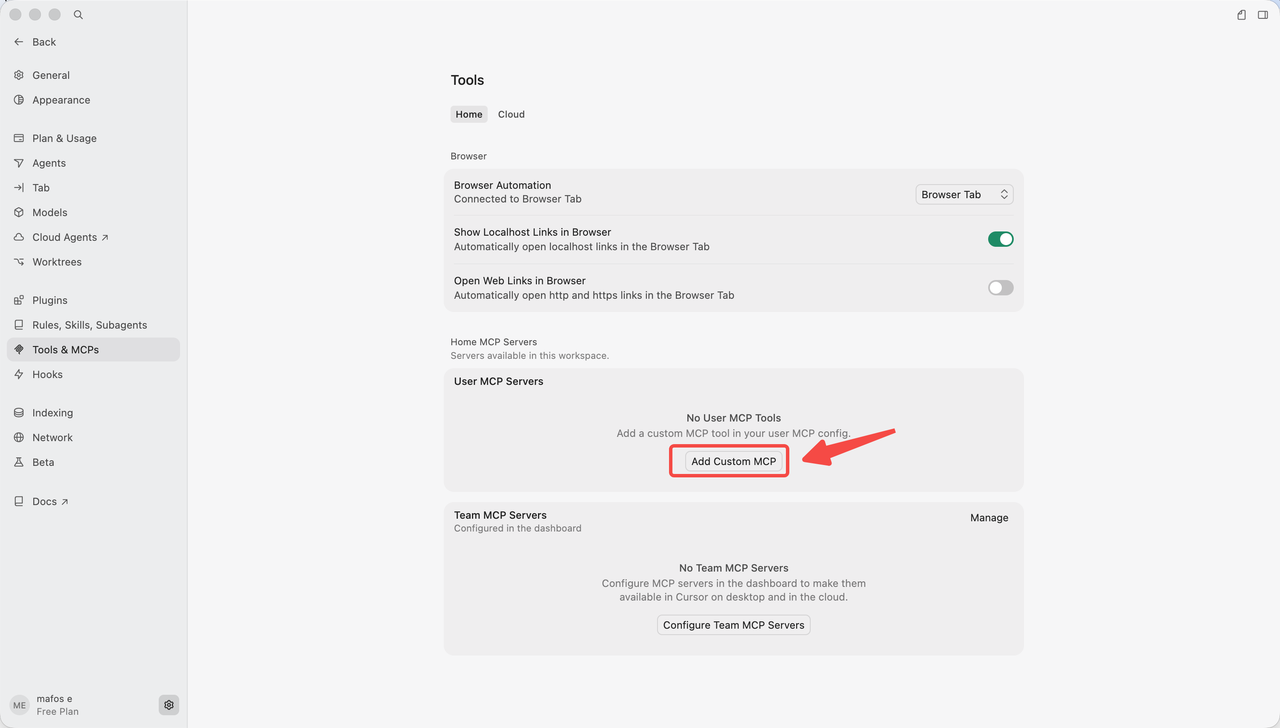
3. Go to Tools & MCP
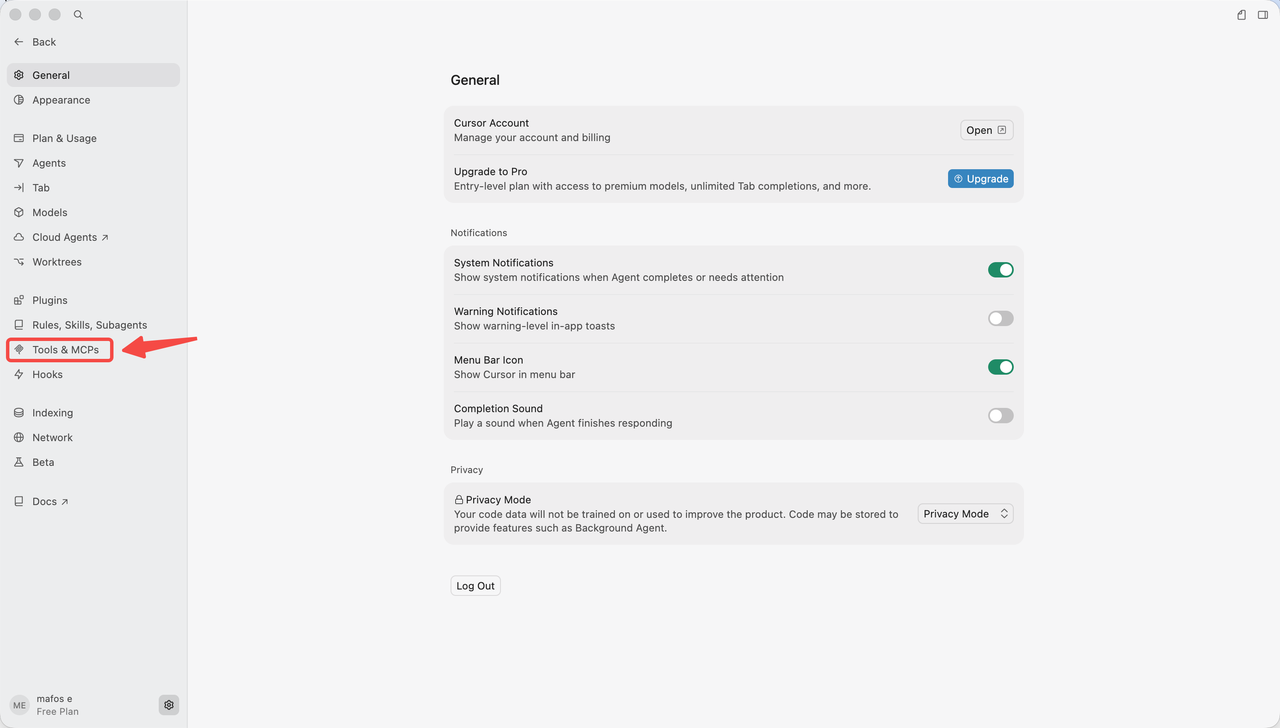
In the settings menu, select “Tools & MCPs”.
4. Add a Custom MCP
Click “Add Custom MCP”.
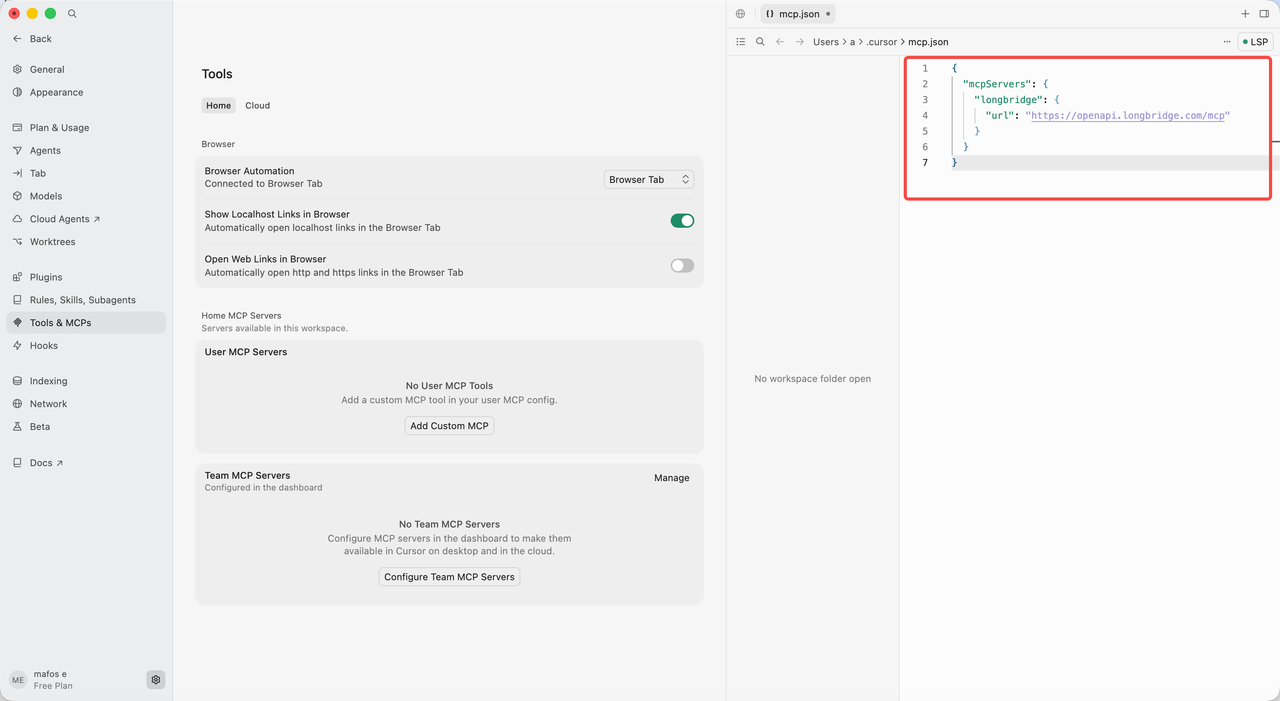
5. Paste the MCP Configuration
Copy and paste the following JSON configuration into the settings area in the upper-right corner, then press Command + S (macOS) or Ctrl + S (Windows/Linux) to save:
{ "mcpServers": { "longbridge": { "url": "https://openapi.longbridge.com/mcp" } } }
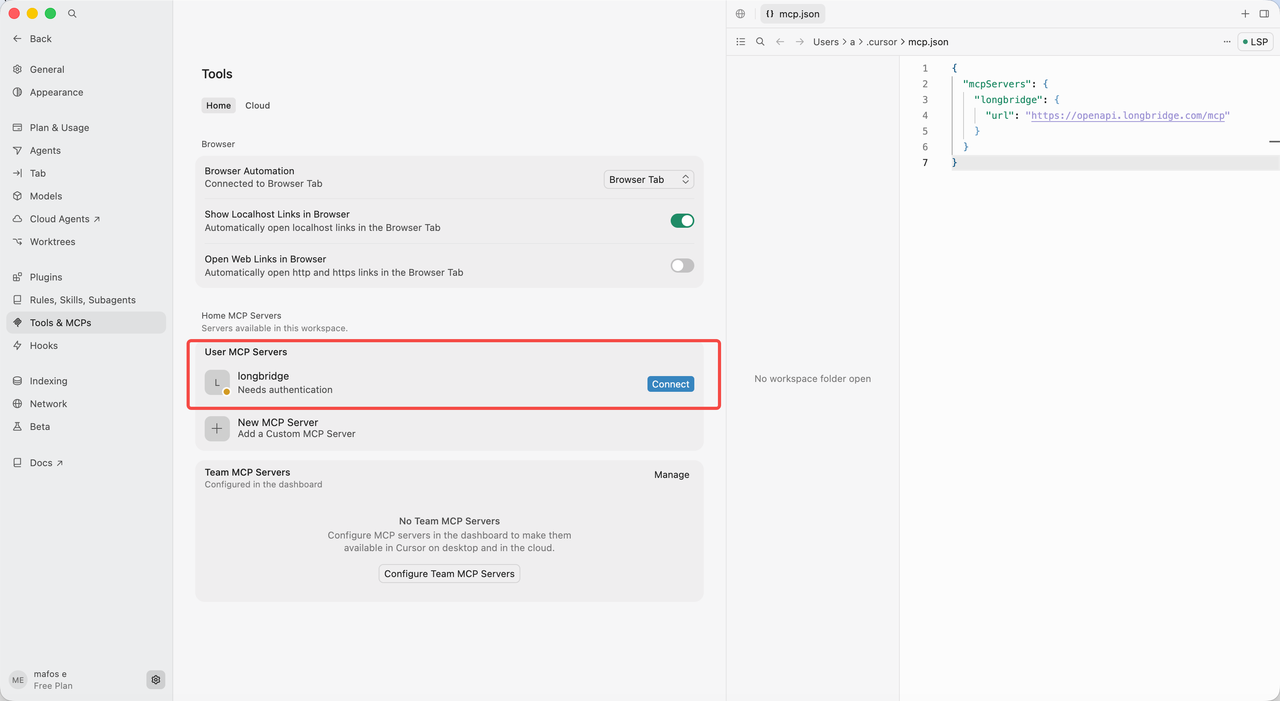
6. Connect
Click “Connect”.
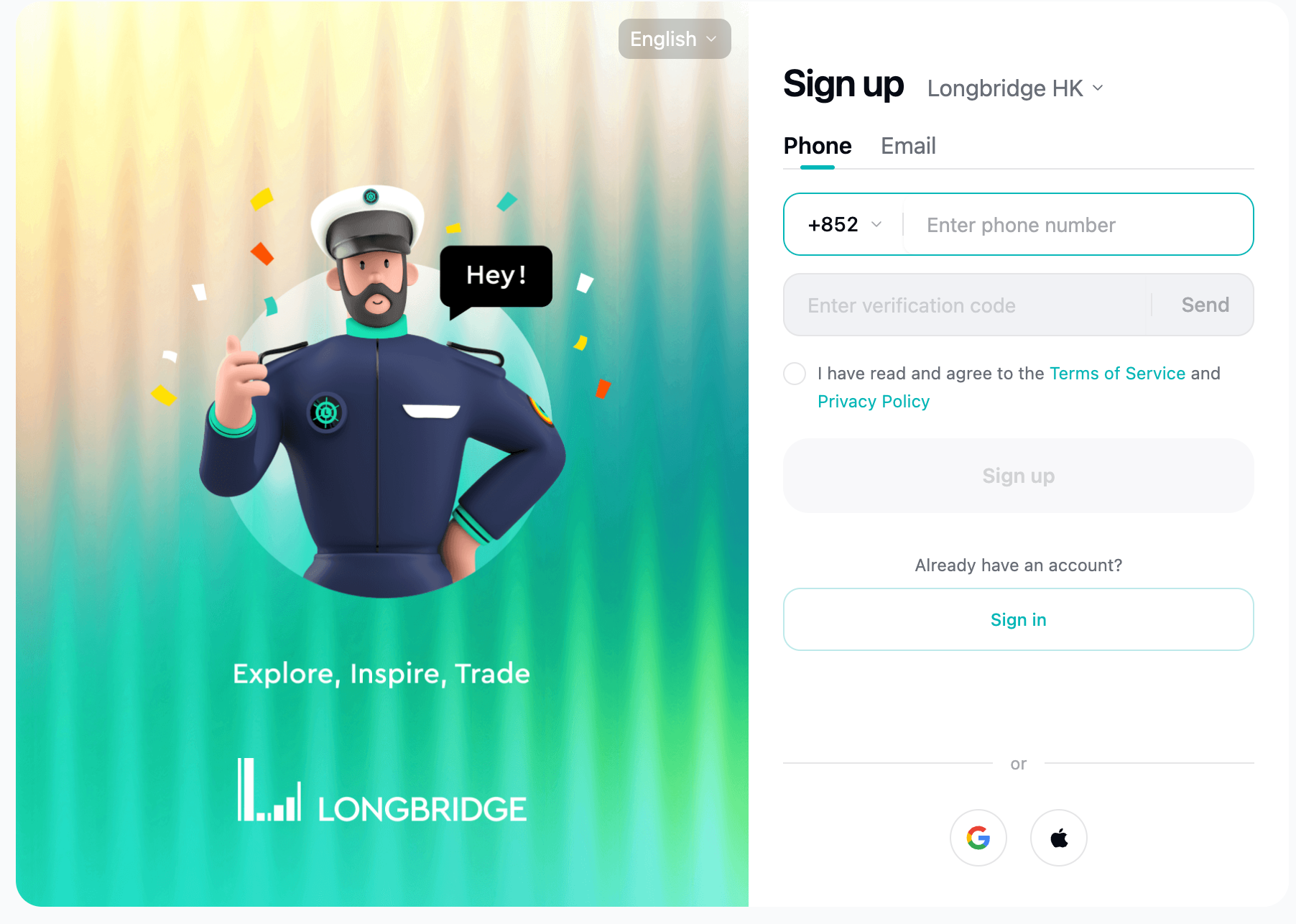
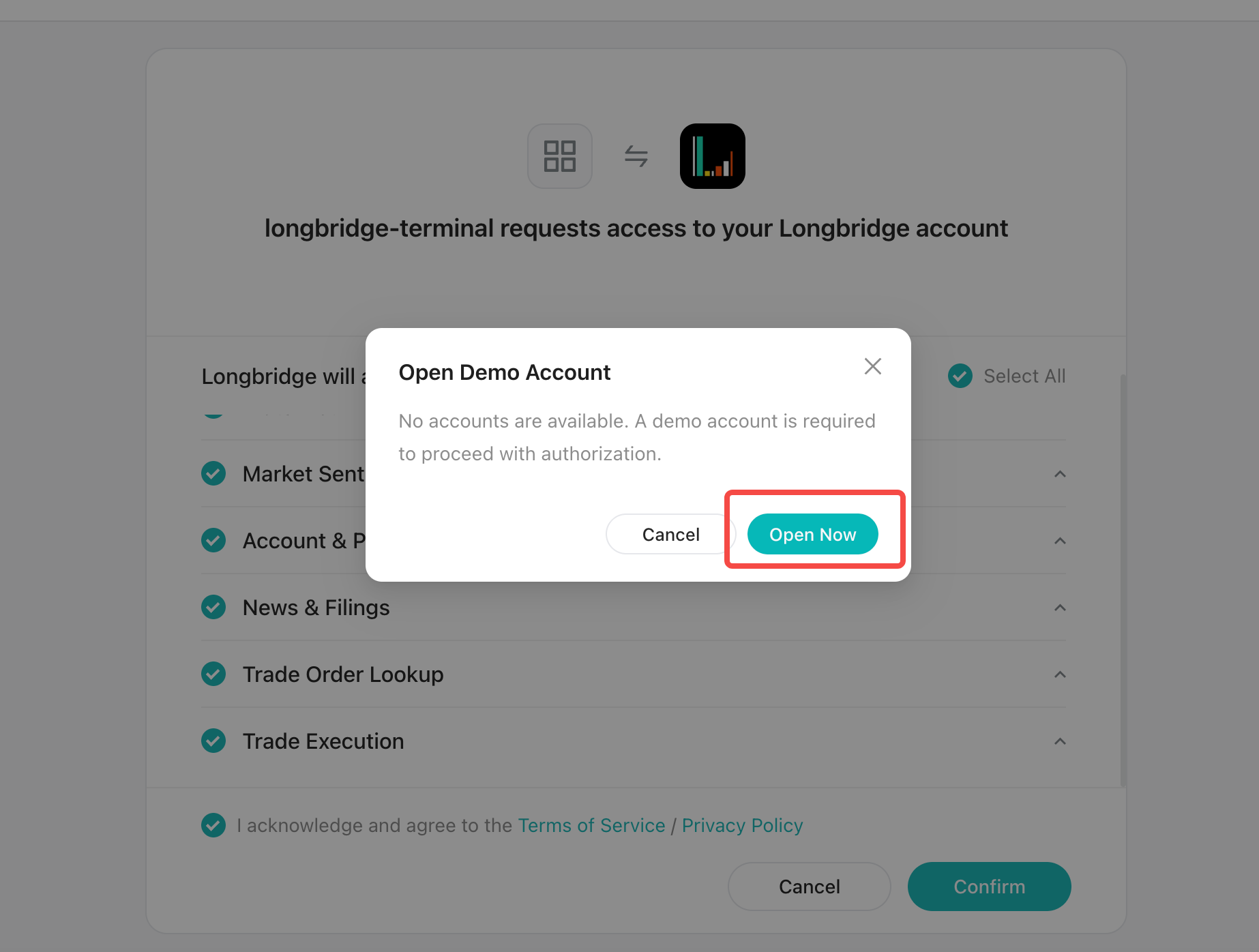
7. Log In and Authorize
Your browser will automatically open the Longbridge login page. Follow the instructions to complete login and authorization.
8. Start Using Real-Time Market Data
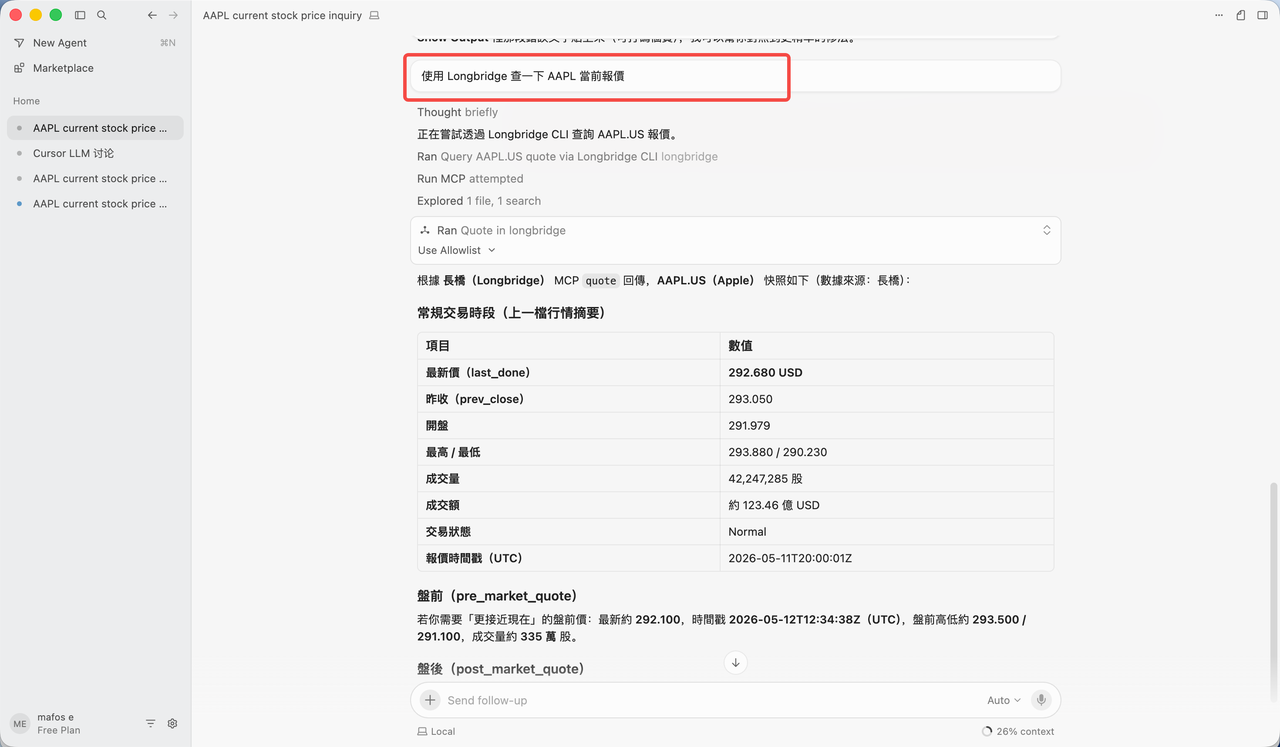
After completing the steps above, you can access Longbridge real-time quote data via Cursor to power AI trading bots and perform AI analysis of trading strategies.
FAQ
The Agent only installed the Skill and did not install the CLI.
Continue typing in the chat box: “Help me install the CLI”, and the Agent will complete the remaining steps.
After installation, the browser did not automatically open the authorization page.
Please confirm that both the Skill and the CLI have been installed successfully, then retry the authorization step.
Not sure whether the installation was successful.
Ask the Agent directly: “Have Longbridge Skill and Longbridge CLI been installed?”
Start using real-time market data to power your trading strategy AI. Go to the Longbridge Developers Platform
Disclaimer
The content in this guide (including but not limited to product feature descriptions, sample commands, and data references) is provided solely for illustration and reference purposes and does not constitute any investment advice, investment solicitation, or recommendation to buy or sell securities. Any historical data, case returns, or simulated results do not represent future performance, and investors should not base investment decisions on them. Investing involves risk. Prices of investment products may rise or fall, and investors should fully understand product risks and seek professional advice.
The AI Agent referenced in this guide is an artificial intelligence tool, not a real human advisor. It remains under active development and may malfunction or produce inaccurate, outdated, or misleading information. Users should independently verify its accuracy.
Before publishing any promotional content related to Longbridge AI, creators must comply with applicable laws and regulations of the relevant regulatory authorities in their jurisdiction. They must not provide specific buy/sell recommendations for any securities, guarantee returns, or imply stable returns.