
How to Install the Longbridge Skill and CLI in EasyClaw: A Step-by-Step Guide
Install and authorize Longbridge Skill and CLI on EasyClaw in minutes, giving your AI agent access to real-time market data to build AI-driven trading strategy workflows—no VPN required.
If you are building or running an AI trading bot with EasyClaw, this guide will walk you through installing the Longbridge Skill and Longbridge CLI, enabling your Agent to access real-time market data and perform AI-driven trading strategy analysis.
Whether you are a developer or a general user, this article provides clear, copy-and-paste-ready steps so you can complete the installation in just a few minutes.
Note: EasyClaw uses China-based models and can be used without connecting to a VPN.
Pre-installation Requirements
A Longbridge account (new users can register during the authorization step)
EasyClaw (installed and running properly)
Longbridge Skill installation guide URL: https://open.longbridge.com/skill/install.md
Installation Steps
1. Install the Skill and CLI
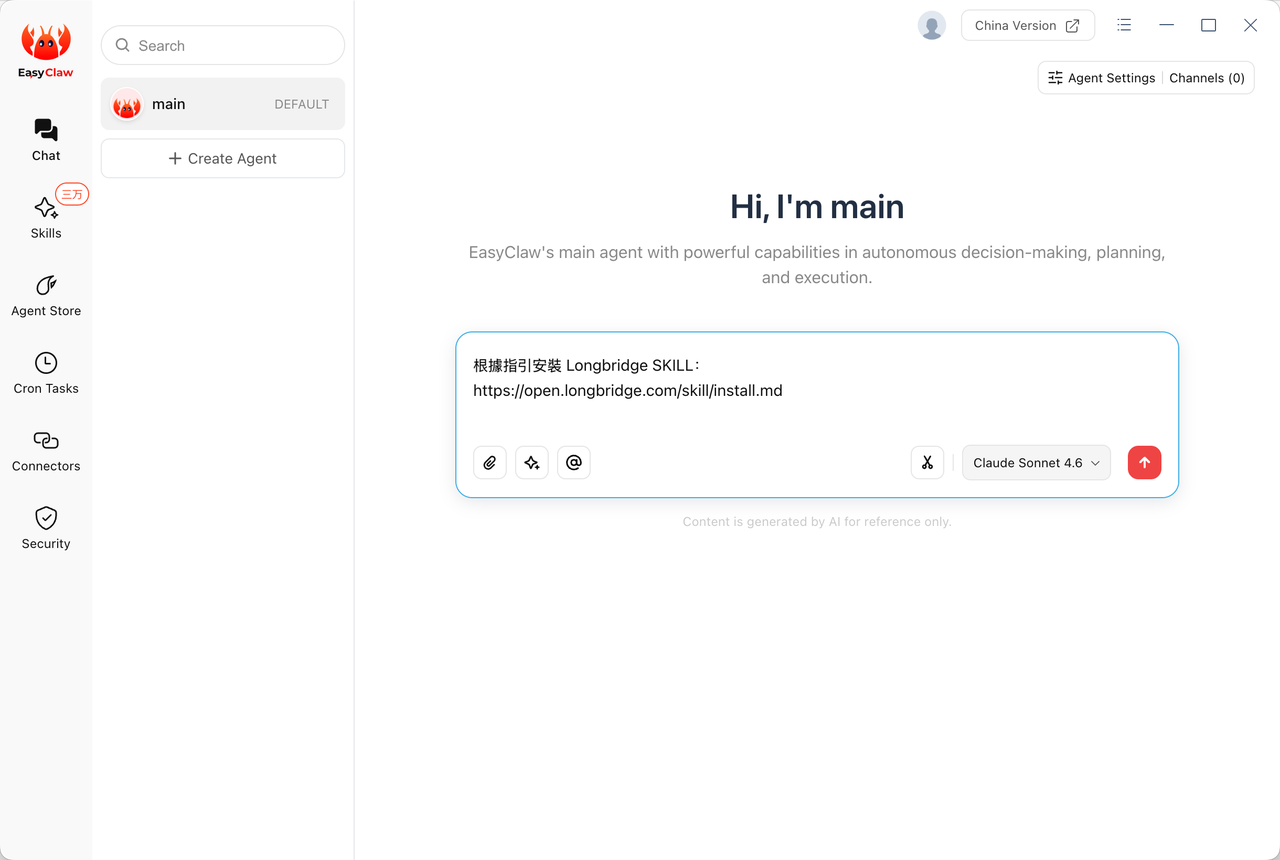
Paste the following command into the EasyClaw chat box:
Install Longbridge SKILL according to the guide: https://open.longbridge.com/skill/install.md
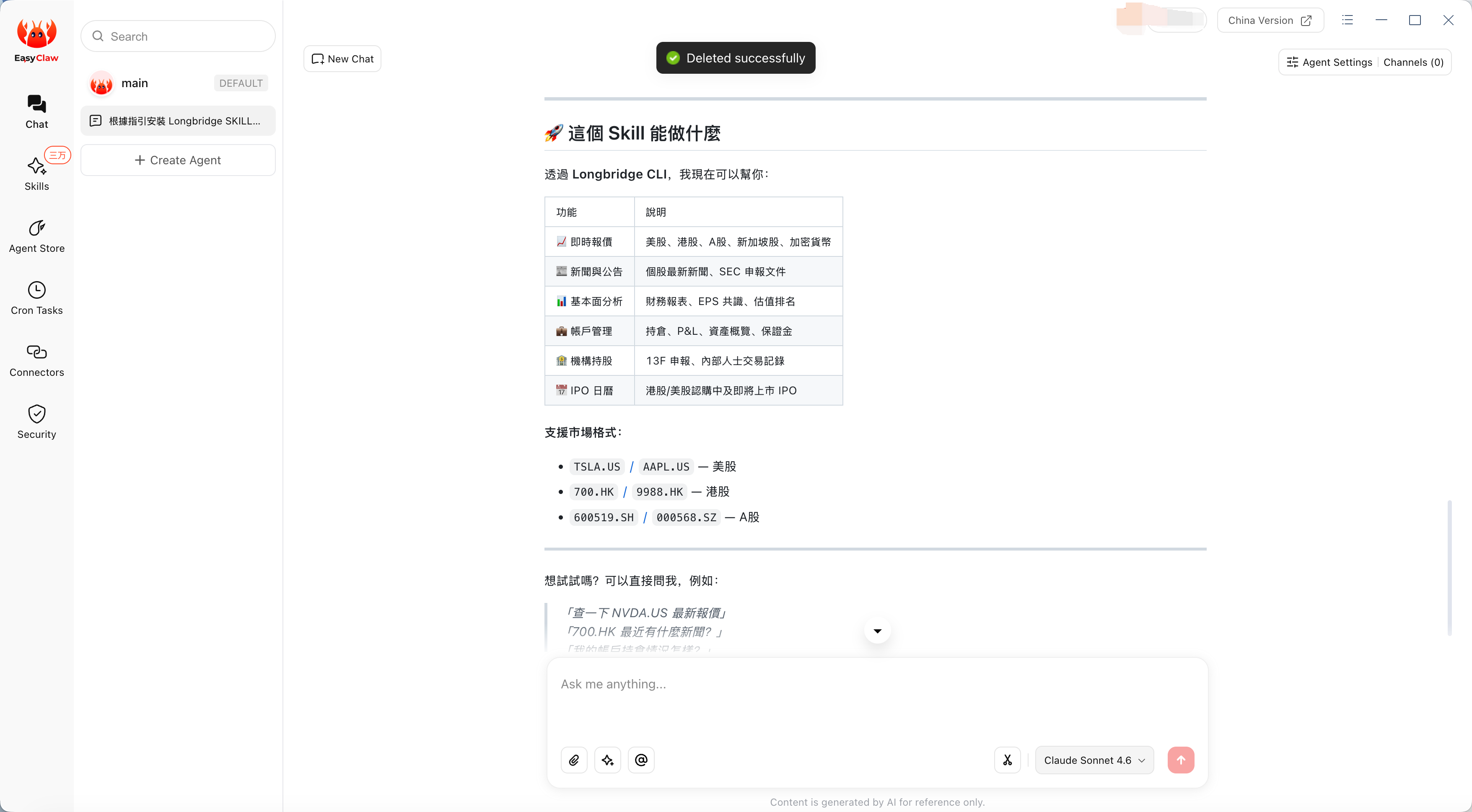
EasyClaw will guide you through installing the Skill and CLI. If the Agent installs only the Skill but misses the CLI, continue by entering:
Help me install the CLI
2. Login and Authorization
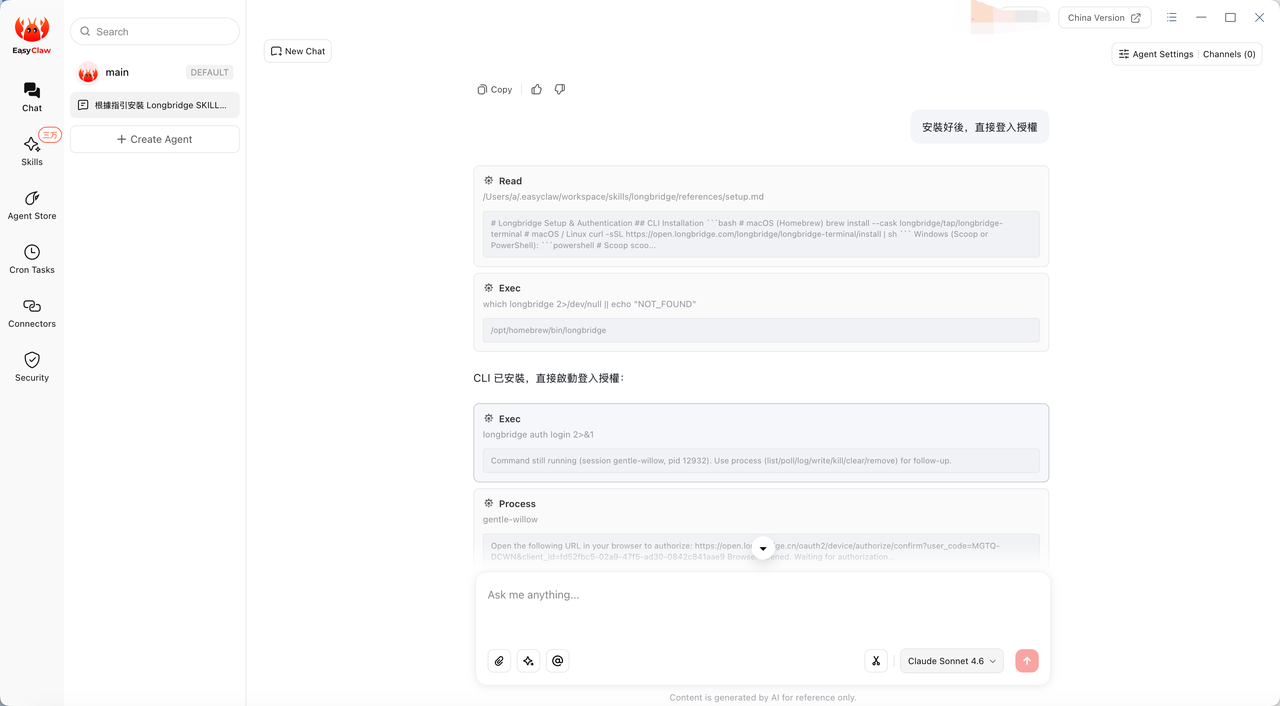
After completing the installation of the Skill and CLI, enter the following in the EasyClaw chat box:
After installation, log in and authorize directly
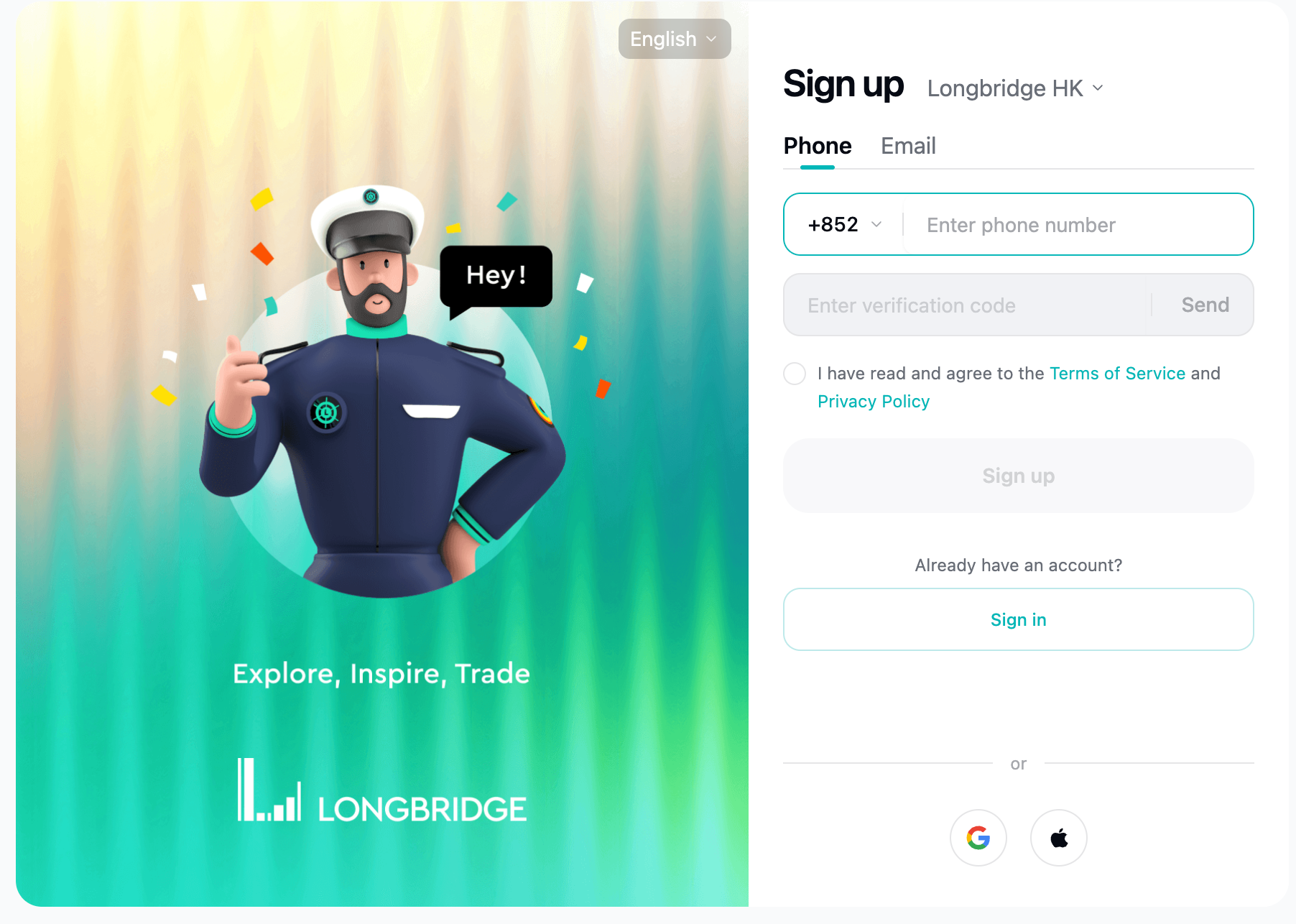
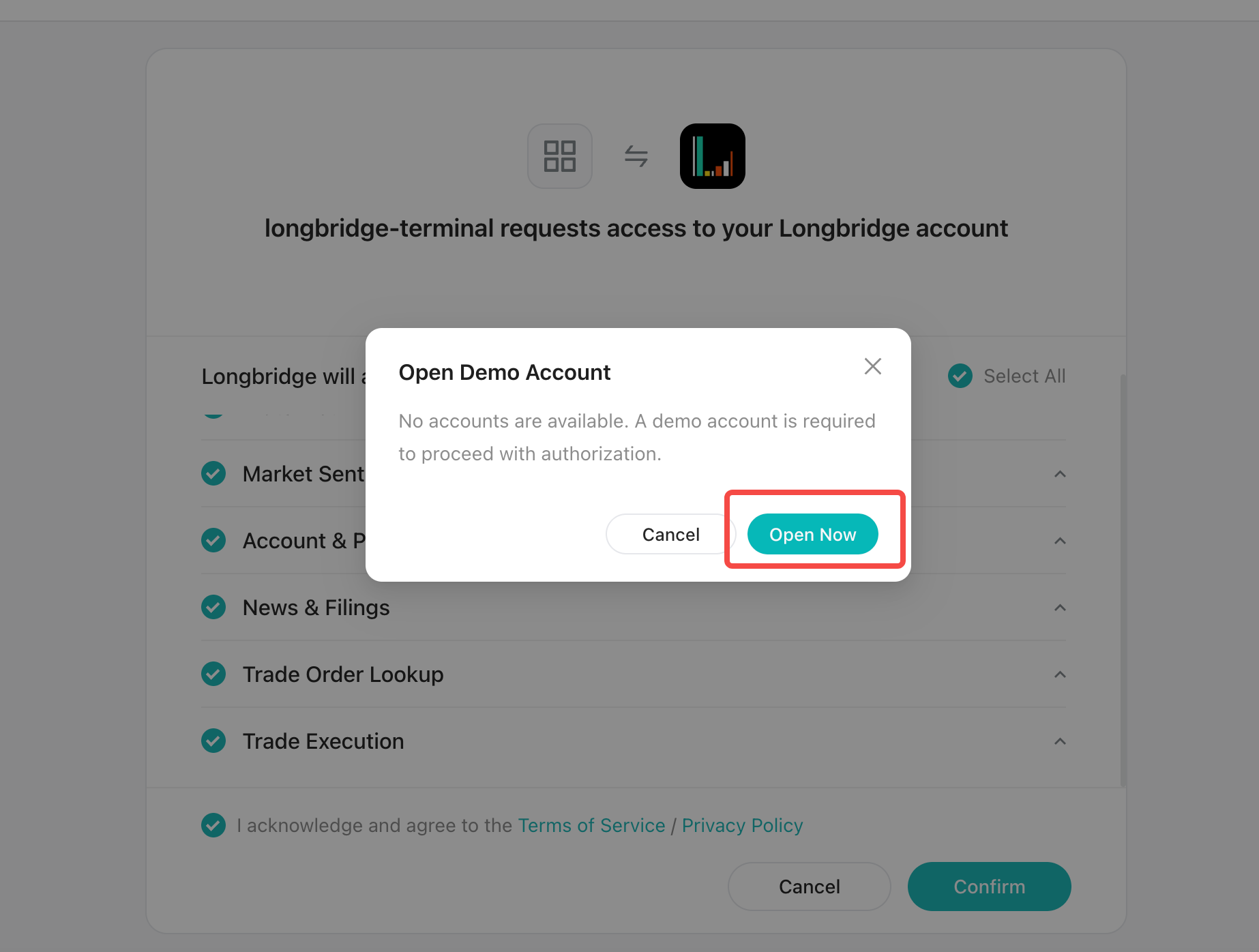
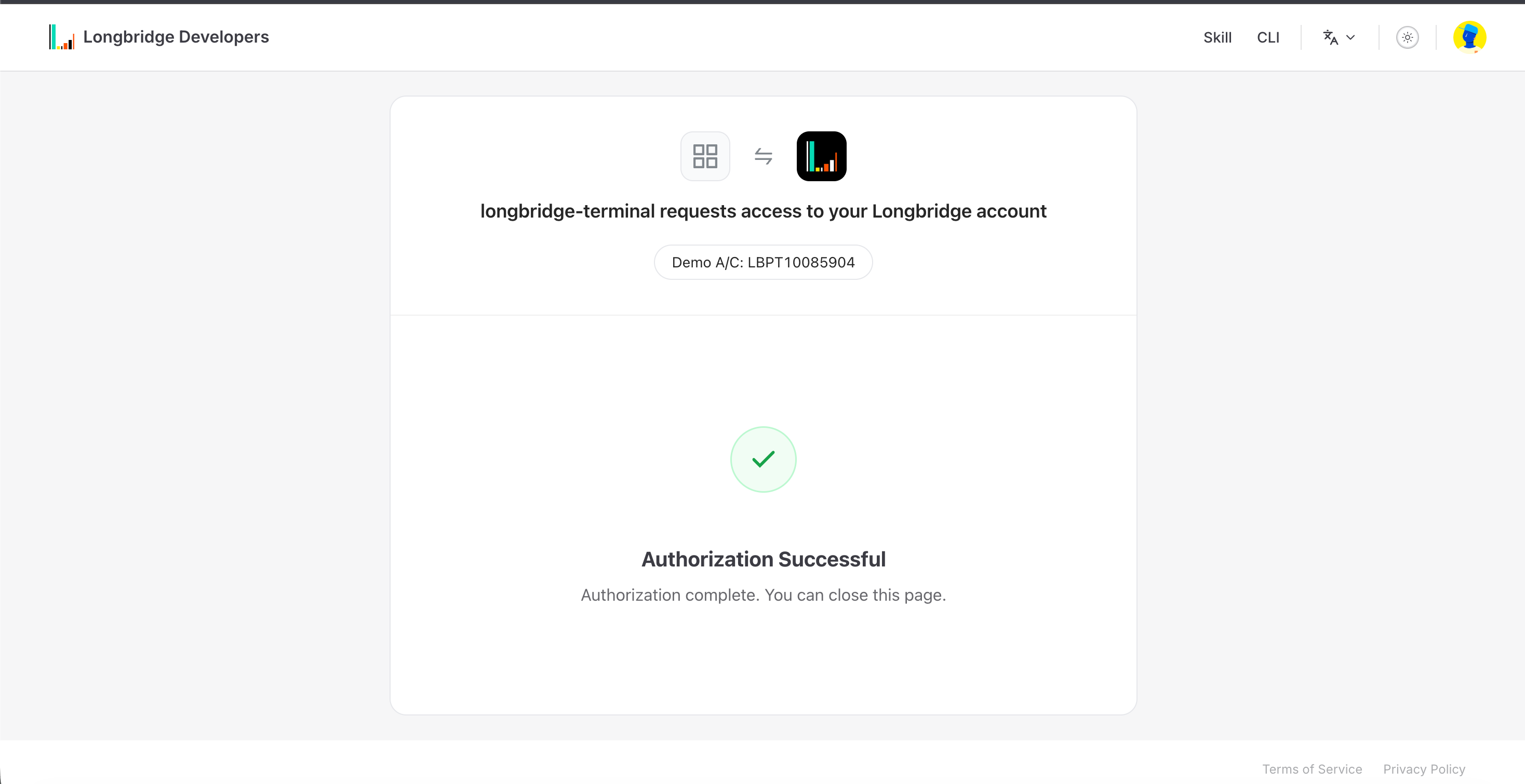
Your browser will automatically open the Longbridge login page. Follow the on-screen instructions to complete login and authorization.
3. Start Using Real-Time Market Data
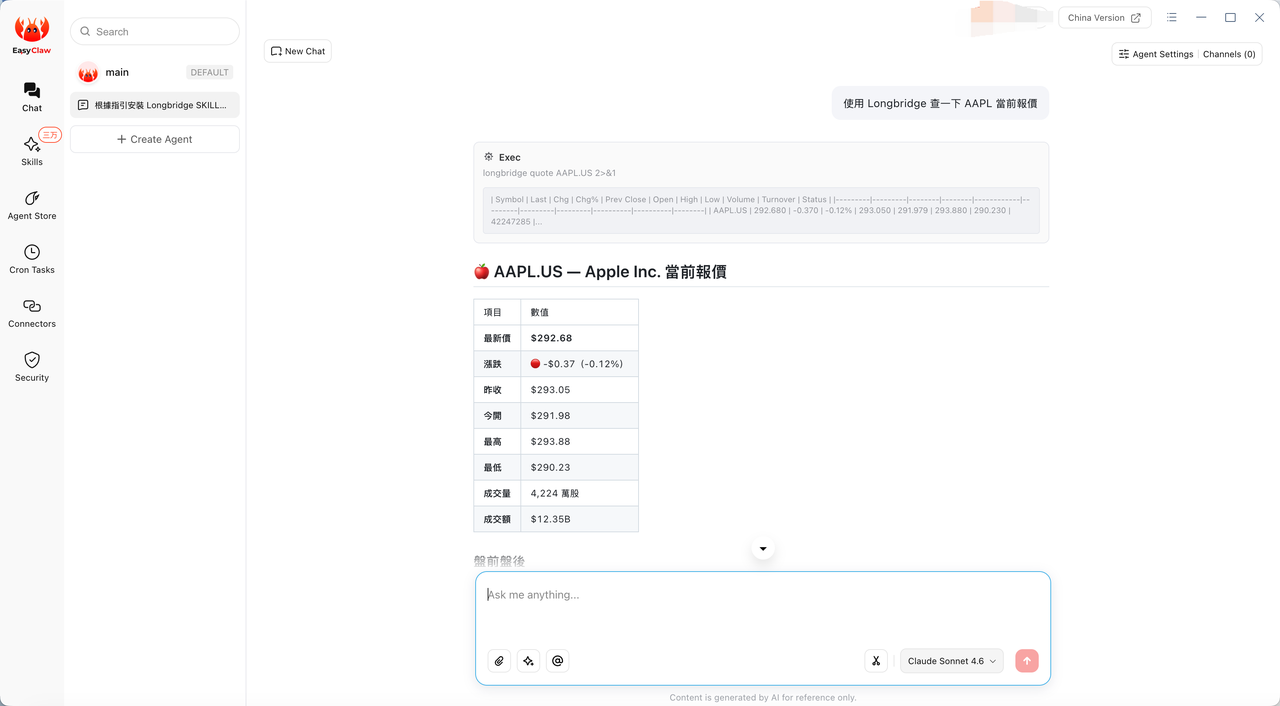
After completing the steps above, you can access Longbridge real-time market data through EasyClaw and perform AI-driven trading strategy analysis.
Frequently Asked Questions
The Agent installed only the Skill and not the CLI.
Continue entering: “Help me install the CLI” in the chat box, and the Agent will complete the remaining steps.
After installation, the browser does not automatically open the authorization page.
Please first confirm that both the Skill and CLI have been successfully installed, then try the authorization step again.
Not sure whether the installation was successful.
Simply ask the Agent: “Have Longbridge Skill and Longbridge CLI been installed successfully?”
Start using real-time market data now to empower your AI trading strategy analysis. Go to the Longbridge Developer Platform
Disclaimer
The content contained in this guide (including but not limited to product feature descriptions, sample commands, and data references) is provided for illustrative and reference purposes only and does not constitute any investment advice, investment solicitation, or recommendation to buy or sell securities. Any historical data, case returns, or simulated results do not represent future performance, and investors should not base investment decisions on such information. Investment involves risks; the prices of investment products may rise or fall. Investors should fully understand the risks of the products and seek professional advice where appropriate.
The AI Agents mentioned in this guide are artificial intelligence tools, not real human advisors, and are still under continuous development. They may malfunction or generate inaccurate, outdated, or misleading information. Users should independently verify the accuracy of any information provided.
Before publishing any promotional content related to Longbridge AI, creators must comply with the applicable regulations of their local regulatory authorities. They must not provide specific buy or sell recommendations for any securities, guarantee returns, or imply stable returns.