
How to Install Longbridge Skill & CLI on Codex
Set up Longbridge Skill and CLI on Codex in minutes, so your AI agent canaccess live market data and run trading strategy AI workflows. A step-by-step guide for developers and general users.
If you are building or using an AI trading bot on Codex, this guide walks you through installing the Longbridge Skill and Longbridge CLI so your agent can access real-time market data and execute trading strategy AI analysis.
Whether you are a developer or a general user, this article provides clear, copy-and-paste steps to complete the installation within minutes.
Note: A VPN connection is required to use Codex. When prompted to select a working environment, make sure to choose "Work locally".
What You Will Need
A Longbridge account (new users can register during the authorisation step)
Codex with a VPN connection enabled
The Longbridge Skill installation guide URL: https://open.longbridge.com/skill/install.md
Step-by-Step Guide
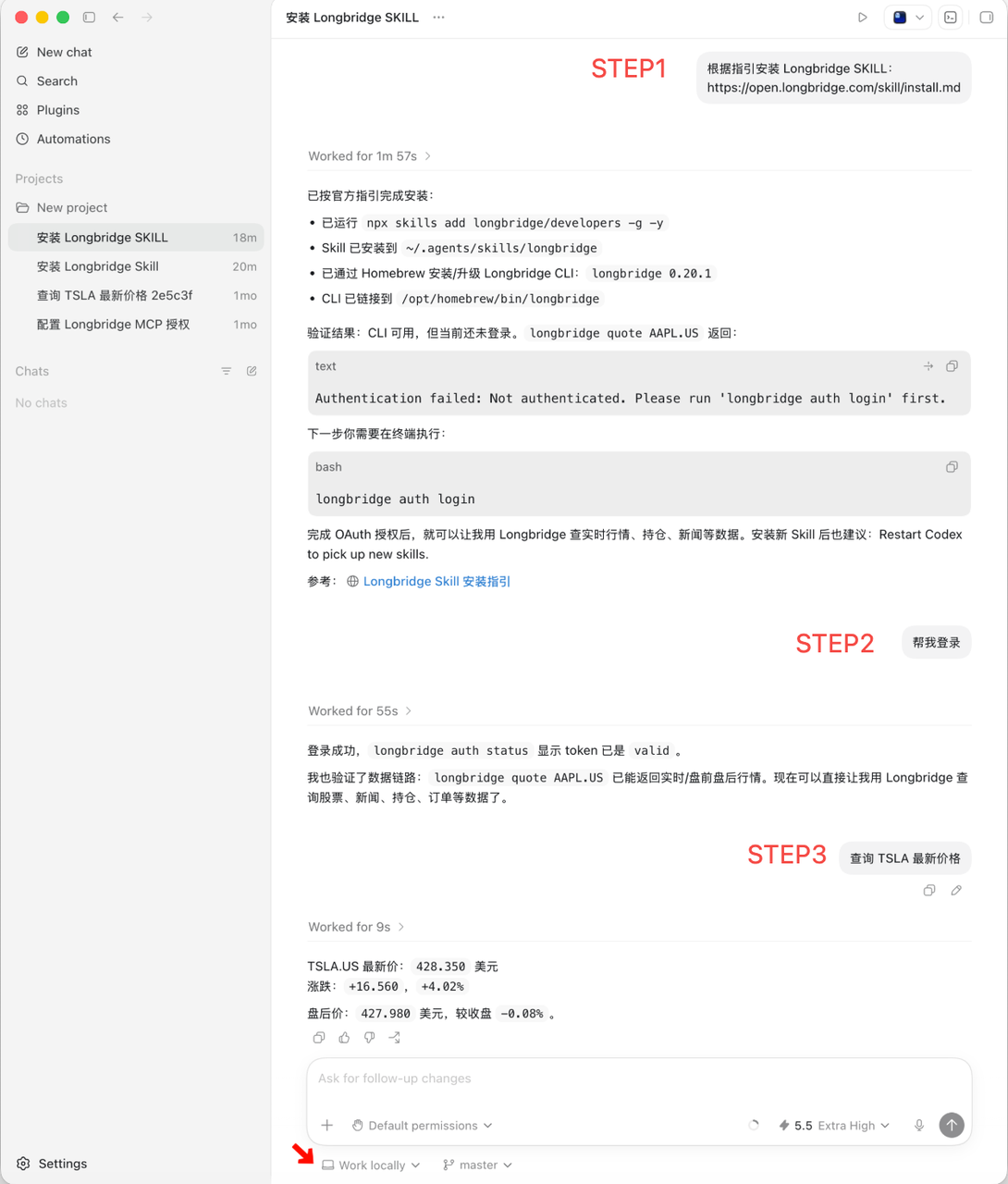
Step 1 — Install Skill and CLI
Paste the following prompt into Codex. When prompted about the working environment, select "Work locally":
Install Longbridge Skill following the guide: https://open.longbridge.com/skill/install.mdCodex will guide you through installing both the Skill and the CLI. If only the Skill is installed and the CLI is missed, follow up with:
Please install the CLI as well.Step 2 — Authorise Your Account
Once the Skill and CLI are installed, type the following in Codex:
Once installed, proceed to login and authorise.Your browser will open the Longbridge login page automatically. Follow the on-screen instructions to sign in and grant access.
Step 3 — Start Using Real-Time Market Data
You are now ready to use Codex with your Longbridge account for live market data and trading strategy AI analysis.
Frequently Asked Questions (FAQs)
The agent installed only the Skill, not the CLI.Send a follow-up message: "Please install the CLI as well." The Agent will then complete the remaining steps.
The browser did not open for authorisation.Confirm that the Skill and CLI installation completed without errors before re-attempting the authorisation step.
You are not sure whether the installation succeeded.Ask the Agent directly: "Have the Longbridge Skill and Longbridge CLI been installed successfully?"
Ready to power your trading strategy AI with live market data? Get started at Longbridge Developers
Disclaimer
All content in this guide, including product feature descriptions, demonstration prompts, and data references, is for illustrative and informational purposes only. Nothing herein constitutes investment advice, an investment solicitation, or a recommendation to buy or sell any security. Historical data, case returns, and simulated results do not represent future performance. Investment involves risk; the value of investment products may rise or fall. Investors should fully understand product risks and seek professional advice as appropriate.
The AI agents referenced in this guide are artificial intelligence tools, not human advisers. They remain in active development and may produce inaccurate, outdated, or misleading information. Users should independently verify all outputs.
Creators publishing any promotional content related to Longbridge AI must comply with applicable regulations in their respective jurisdictions. Creators must not make specific buy or sell recommendations for any security, guarantee returns, or imply stable profits.