
Desktop Hotkey Rules
Shortcut Key Classification
Global shortcut keys: When the desktop is opened, the supported global shortcut keys, such as evoking the setting pop-up window, creating a new tab, etc.
Function shortcut keys: need to take effect for specific functions/components, such as the number of components placed in a transaction order, price shortcut input, etc.
1. Frequently Used Shortcut Keys
| Function | Default |
| Switch to the next focus | Tab |
| Return to the previous focus | Shift+Tab |
| OK and checked | Enter |
| Cancel | Esc |
| Switch focus up | ↑ |
| Switch focus down | ↓ |
| Switch focus to left | ← |
| Switch focus to right | → |
2. Global Shortcut Keys
Classification | Function | Mac Default | Windows Defaul |
Tab | New Tab | ⌘T(Customizable Settings) | Ctrl+T(Customizable Settings) |
| Redirect to the previous tab | ⌘← | Ctrl+← | |
| Redirect to the next tab | ⌘→ | Ctrl+→ | |
Widget | Widget quick-switching mode | Long press Option | Long press Alt |
| Open widget toolkit | Customizable Settings | Customizable Settings | |
| Open the menu widget | ⌘E | Ctrl+E | |
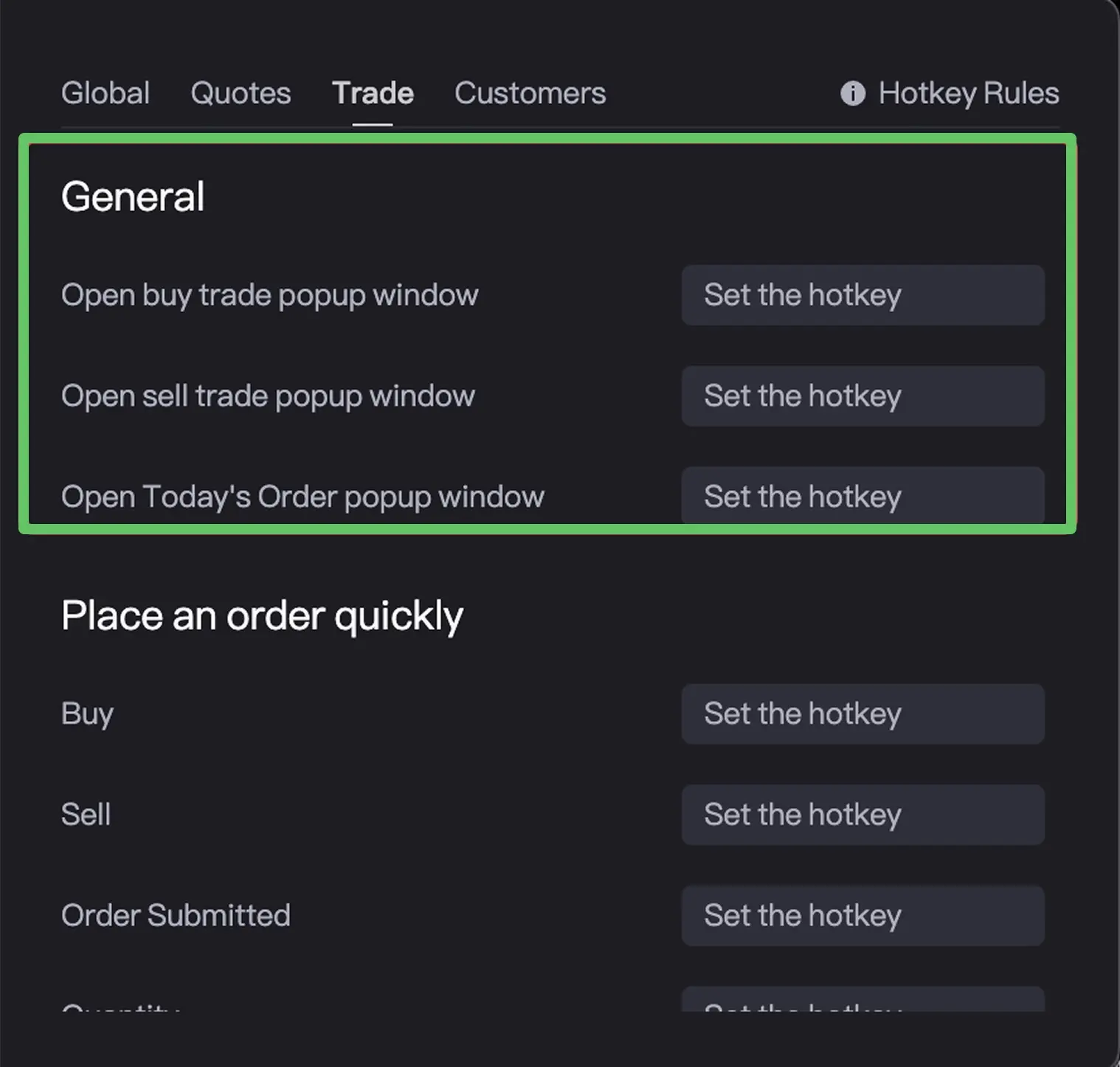
| Open buy trade popup window | Customizable Settings | Customizable Settings | |
| Open sell trade popup window | Customizable Settings | Customizable Settings | |
| Open Today's Order popup window | Customizable Settings | Customizable Settings | |
List | Swipe up to turn pages | Fn↑ | PageUp |
| Swipe down to turn pages | Fn↓ | PageDown | |
General | Open the Hotkey Description page | ⌘/ | Ctrl +/ |
| Open settings popup | ⌘, | Ctrl +, | |
| Hidden software | ⌘H | Ctrl +H | |
| Quit | ⌘Q | Ctrl+Q |
New Tab
Mac shortcut key: ⌘T, Windows shortcut key: Ctrl+T.
This shortcut key can automatically open a new tab
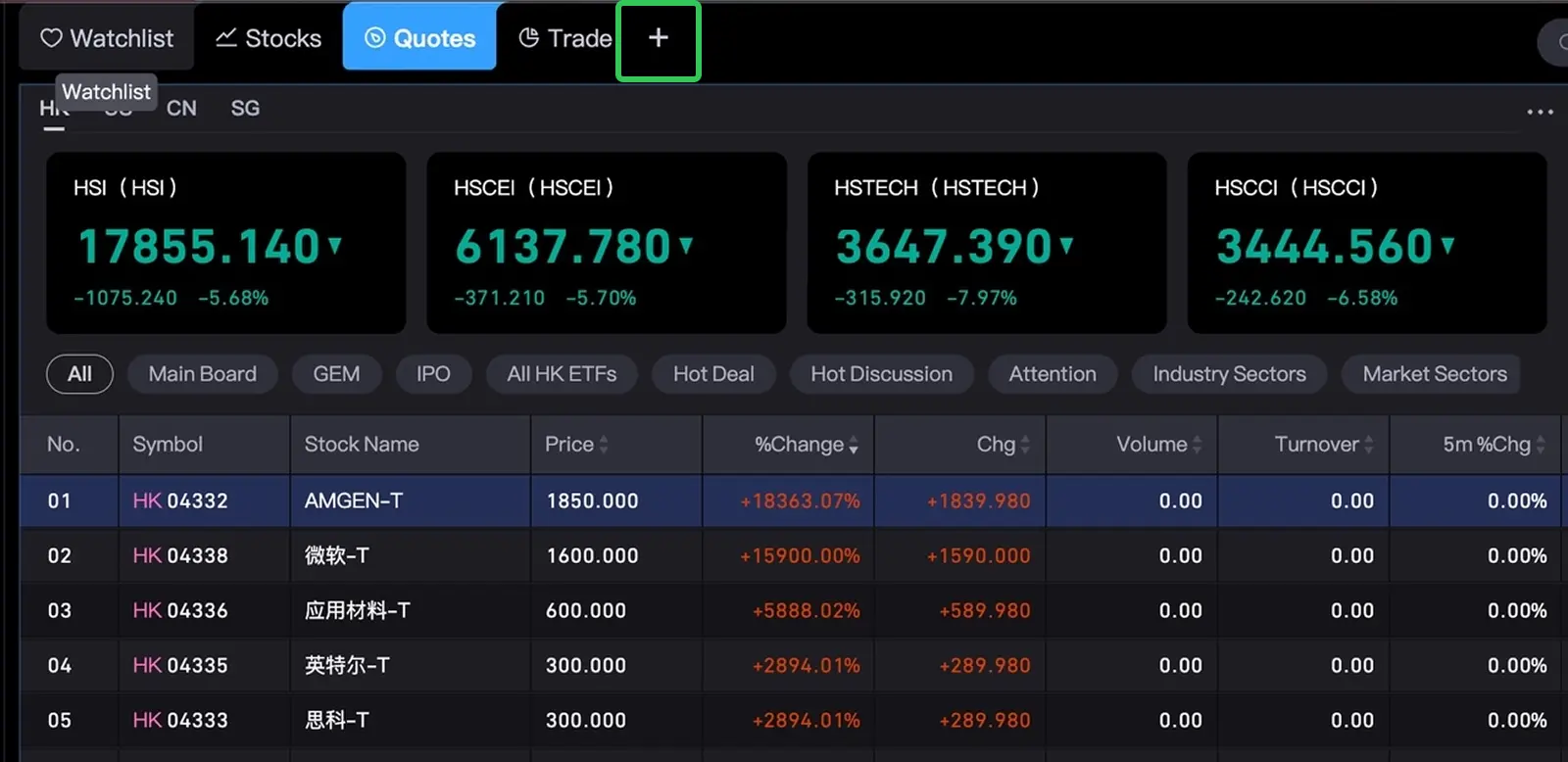
Redirect to the previous tab and redirect to the next tab
Mac side: ⌘← or ⌘→. Windows shortcut: Ctrl+← or Ctrl+→.
Click the shortcut key to quickly switch the currently selected tab page left and right.
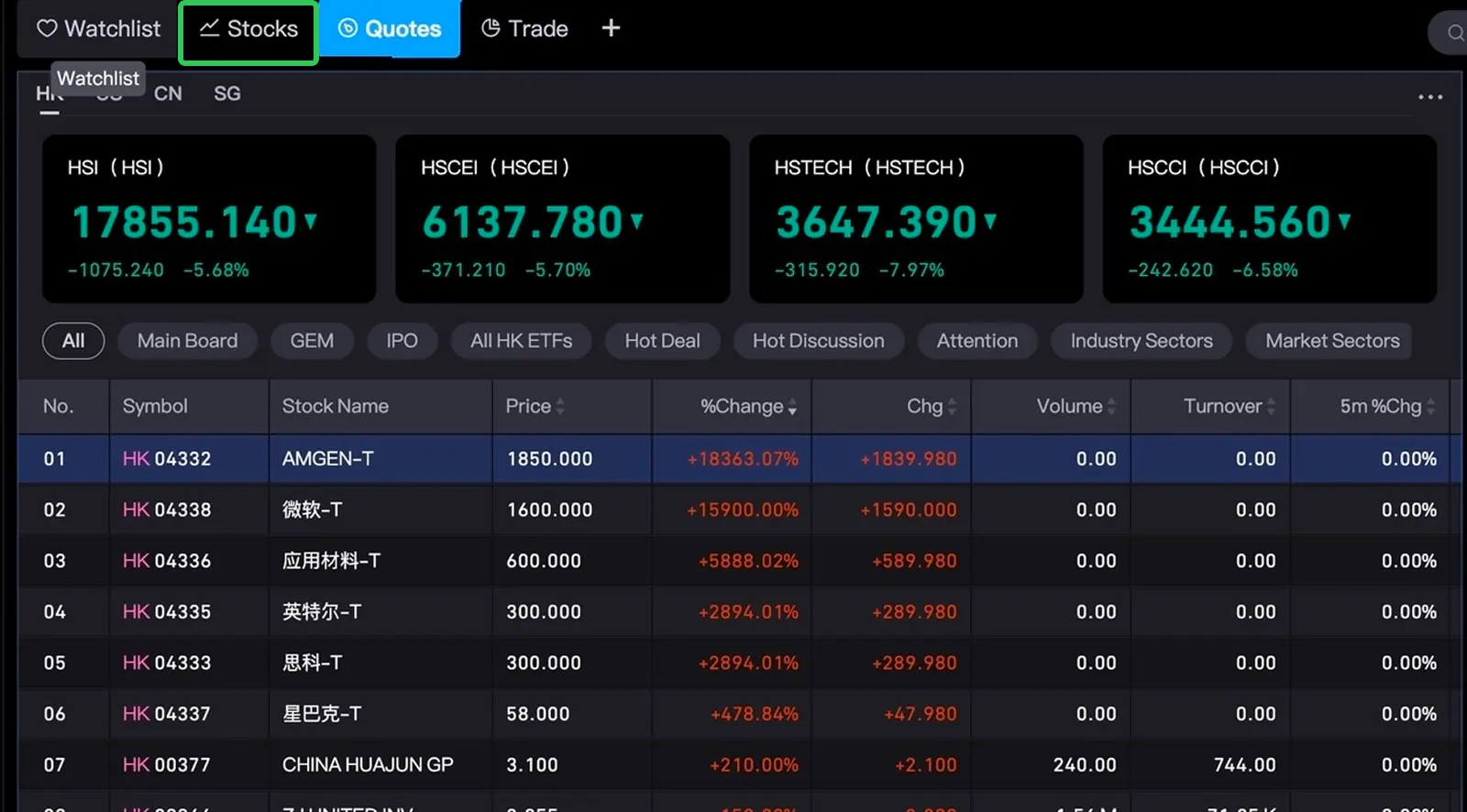
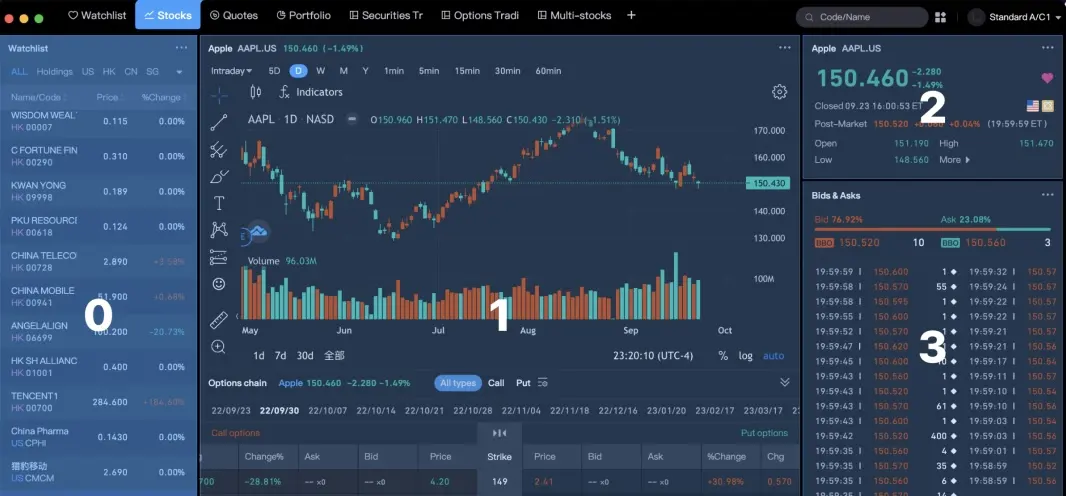
Enter the component quick switching mode
Long press the shortcut key (Mac: Option, Windows: Alt) to enter the component quick switching mode. At this time, you can click the number/letter to quickly locate a component, or click ←↑↓→ to quickly switch the component focus.
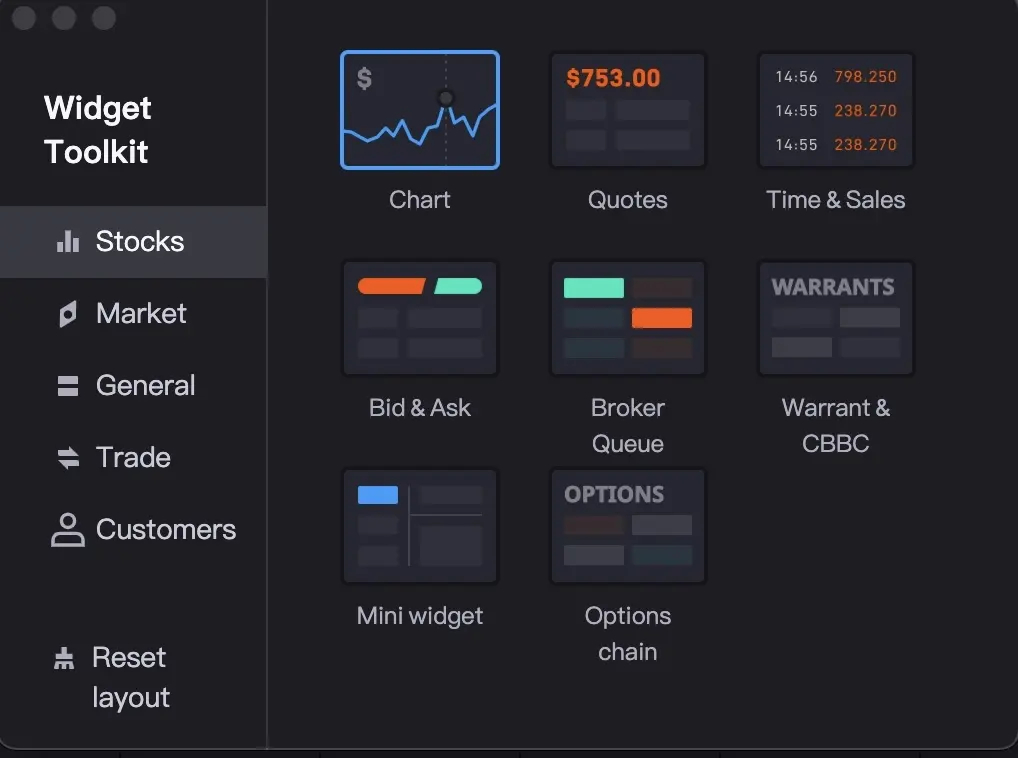
Evoking the component toolbox
The shortcut key is empty by default and needs to be set manually. Clicking the shortcut key can quickly evoke the component toolbox.
Open the component operation menu
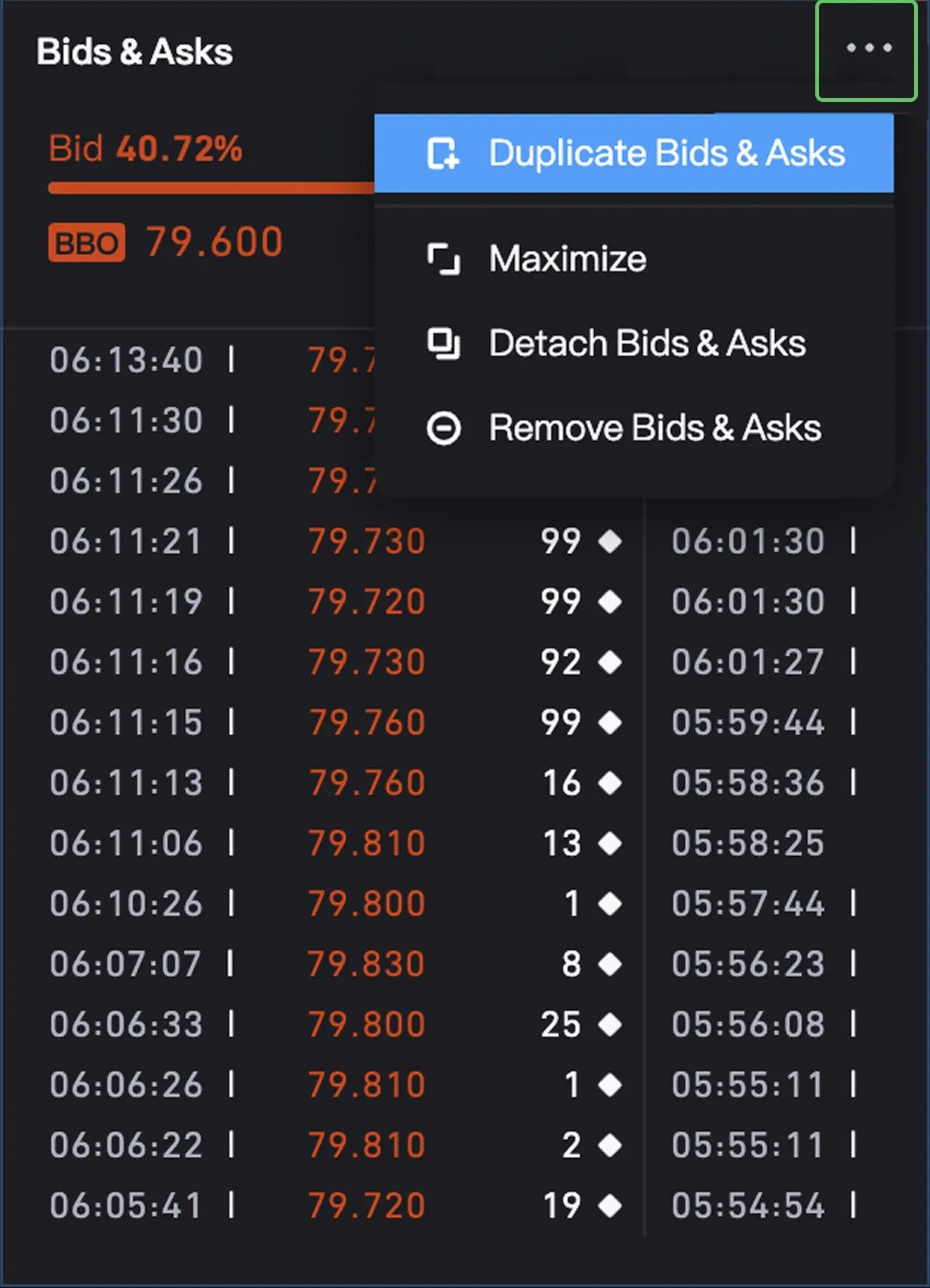
Mac shortcut key: ⌘E, Windows shortcut key: Ctrl+E
After the user selects the current component, the user can click the shortcut key to quickly evoke the component operation menu, click ↑↓ to switch the selected operation content, and click Enter to select the current operation behavior.
3. Trading shortcuts
General transaction shortcut keys
Can globally evoke the trading component to buy, the trading component to sell, and the pop-up window of today's order.
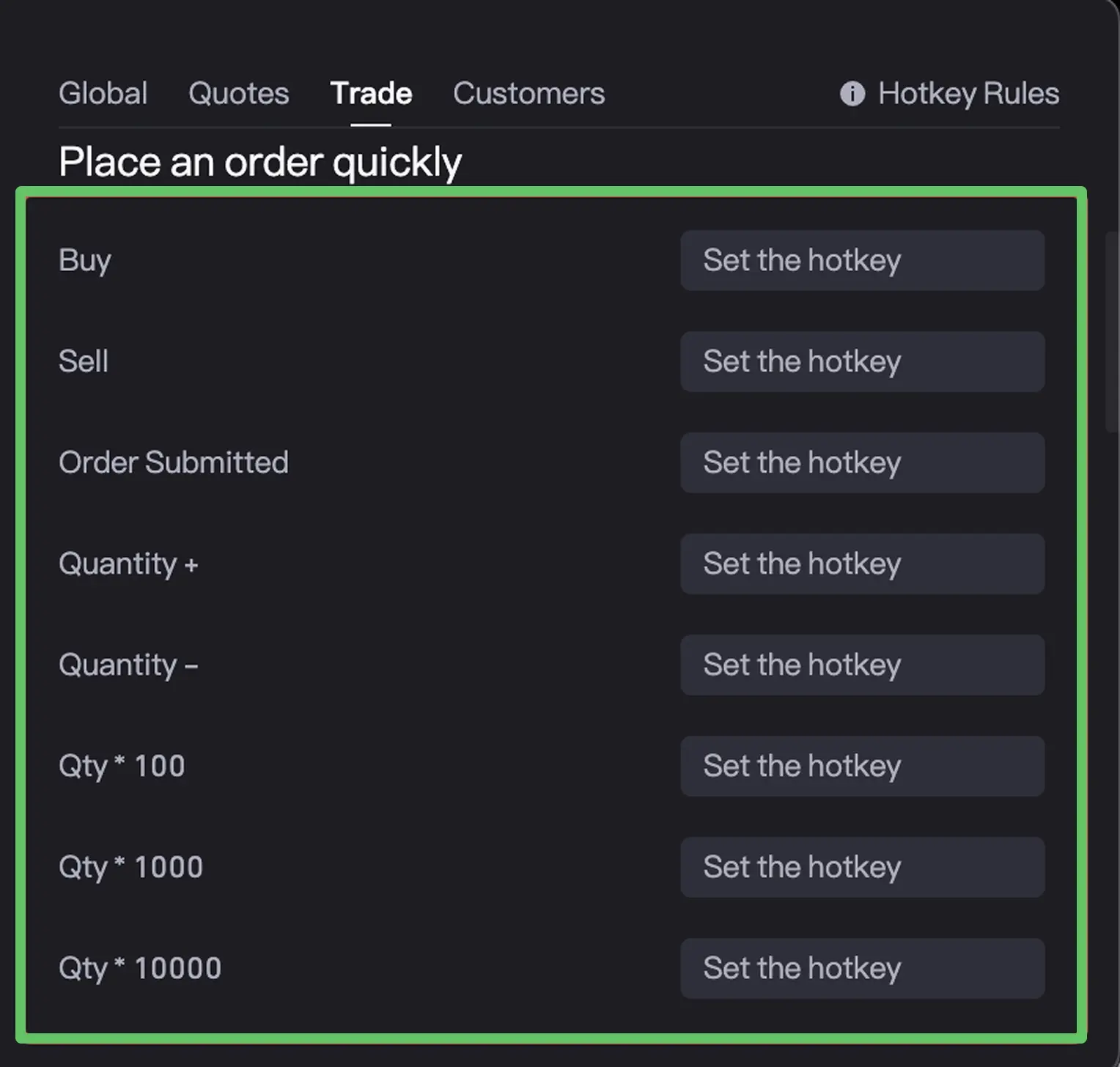
Quick order - effective for trade
The transaction shortcut key, which requires the focus to select the transaction component, takes effect for trade.
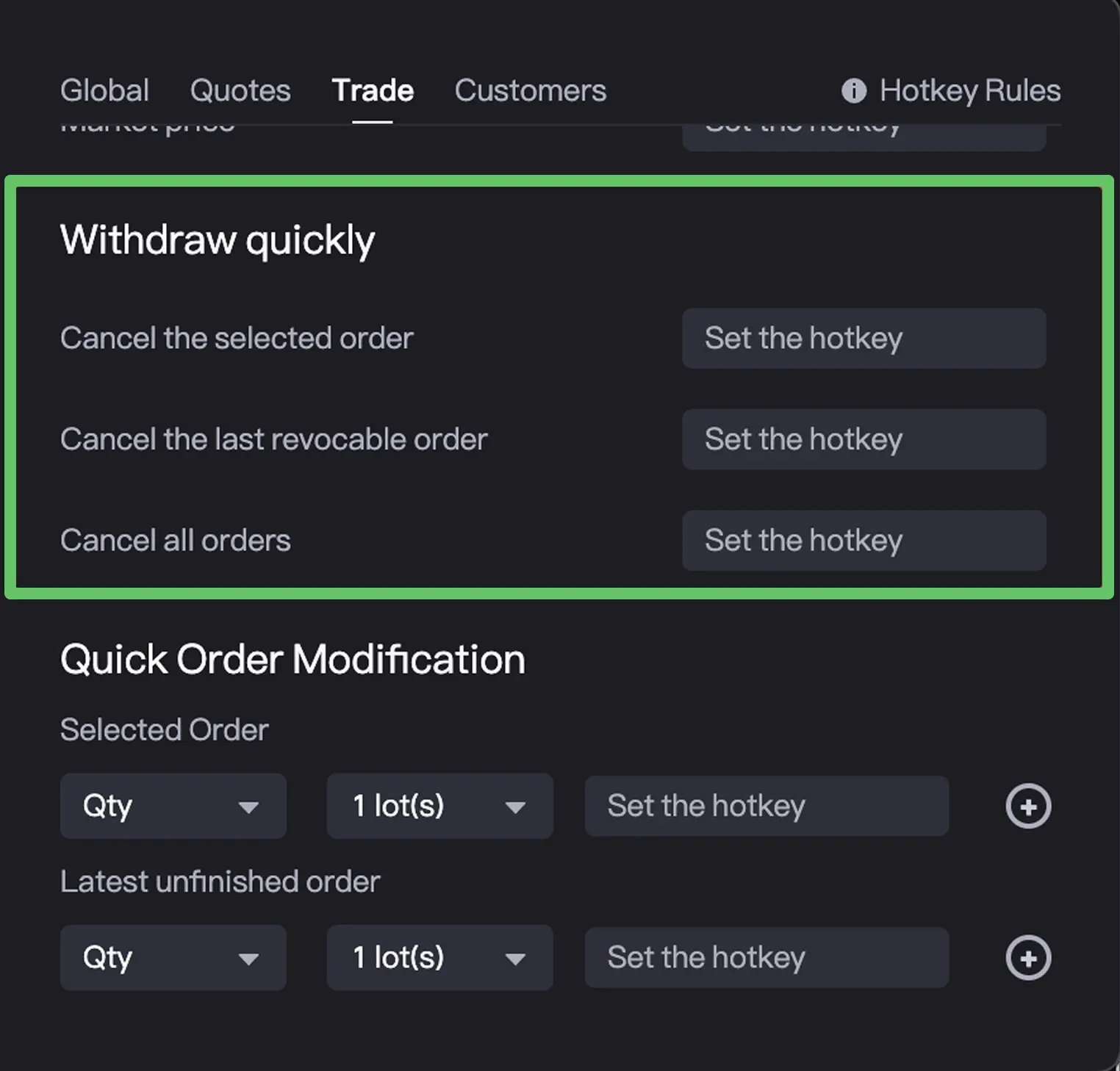
4. Shortcut keys for quick order cancellation
Order shortcut key, you need to focus on the current order/historical order component, it will take effect on current order and historical order components.
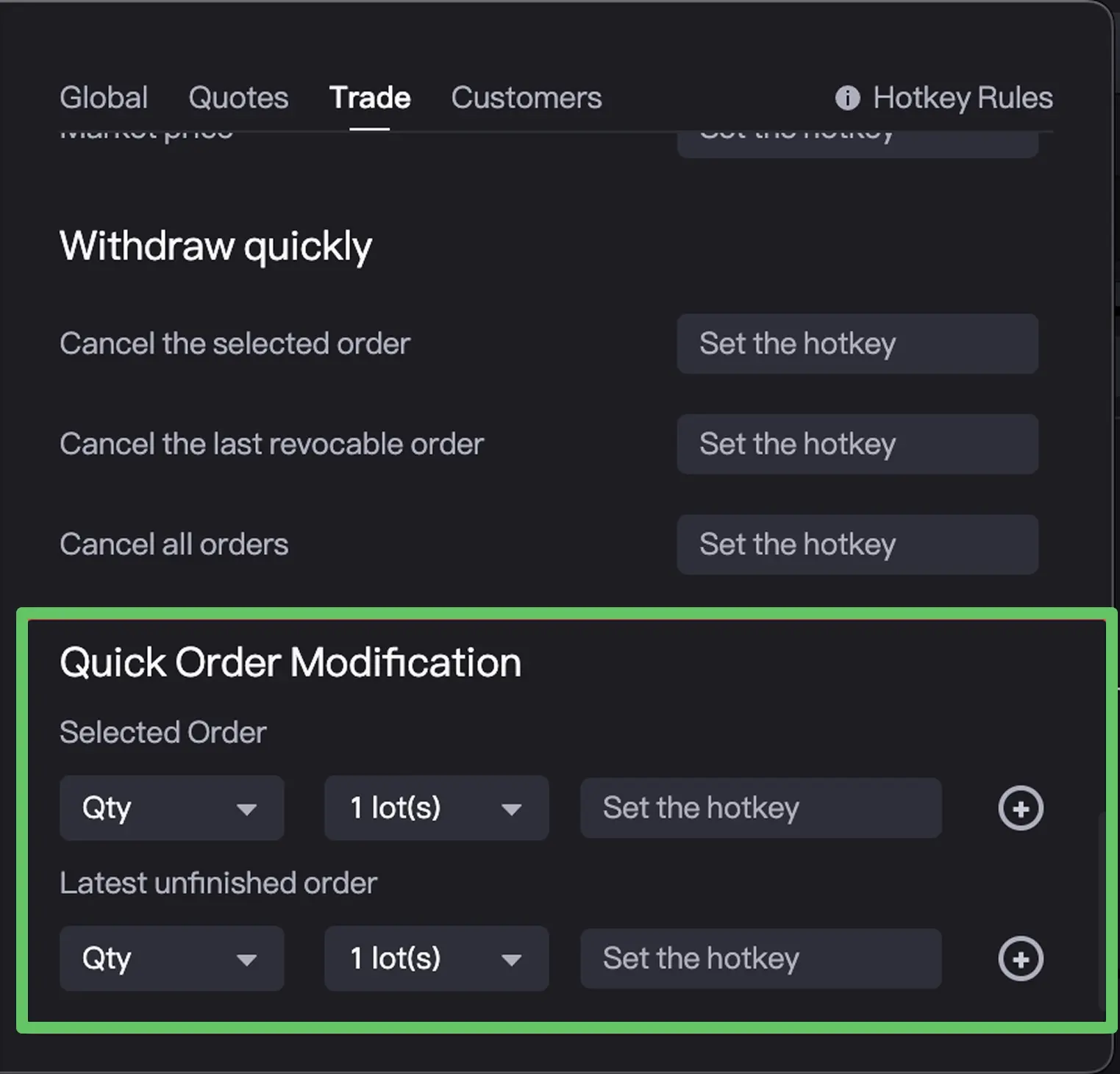
5. Shortcut keys for quick order modification
6. Customize Shortcut Key
Shortcut key customization input, allowing single key and key combination settings.
- Single key input: Allows custom input settings such as F1~F12, punctuation marks, etc., of which a single number or a single letter is not allowed to be set
- Key combination:
- Mac: Enter Command, Shift, Option, Control + number, letter or punctuation
- Windows: Enter Ctrl, Shift, Alt+number, letter or punctuation
- There is no limit to the number of digits of the key combination, and the last digit must be a number, letter or punctuation mark.
Was this helpful?