
Have the AI Run Tasks for You on Schedule
Scheduled tasks are open to everyone, third-party services can be connected, and AI-built pages can set alerts.
Have the AI Run Tasks for You on Schedule
Scheduled tasks are open to everyone, you can connect third-party services, and AI-built pages can add to your watchlist and set alerts.
Unless otherwise noted, the following feature updates are available on the LongbridgeAI web version, and the AI built into the Longbridge App will roll out with upcoming App updates.
Highlights
Scheduled tasks: have the AI run tasks for you on schedule
Create a task under “Scheduled Tasks” in the sidebar and write what you want the AI to do. It can repeat daily, weekly, or monthly, or run at market moments such as the open or close, and the results are sent to you through the Message Center. You can also ask the AI to create one in a conversation. When creating or editing a task, you can choose the trading account it uses, and you can open a task to see its past runs. Note: The number of tasks you can create depends on your plan, and each automatic run uses allowance like a regular question.

Connect third-party services
Under Settings > Connectors, you can connect third-party services such as Binance, CoinGecko, Financial Datasets, GitHub, Interactive Brokers (IBKR), moomoo, Notion, Upstox, and Webull to LongbridgeAI, so the AI can use their data and features in conversations. The official Longbridge connector provides industry and company fundamentals. When a conversation needs a service you have not connected, an explanation appears first, and you authorize after confirming. Note: Each connector needs its own authorization, which is bound only to the person who started it, and revoking it takes effect immediately.

Start a new conversation from any answer
Click the “Branch in new chat” button under an answer to continue a new discussion from that answer without affecting the original conversation. After you edit and resend a question, you can switch between the different answer versions to that question.

Add to watchlist and set alerts from AI-built web pages
Web pages built by the AI can include action buttons that, when clicked, add or remove stocks from your watchlist, create watchlist groups, or set and delete price alerts in your own Longbridge account. Before each action, a confirmation shows the details, such as the stock and price condition, and nothing happens until you confirm. Links in the page can also open Longbridge pages such as stock details, news, markets, the stock screener, and the financial calendar. Note: Page buttons cannot place orders or take public actions such as posting. When others open a page you shared, the buttons act on their own accounts, and they need to sign in and authorize first.

Keep sending messages while the AI is answering
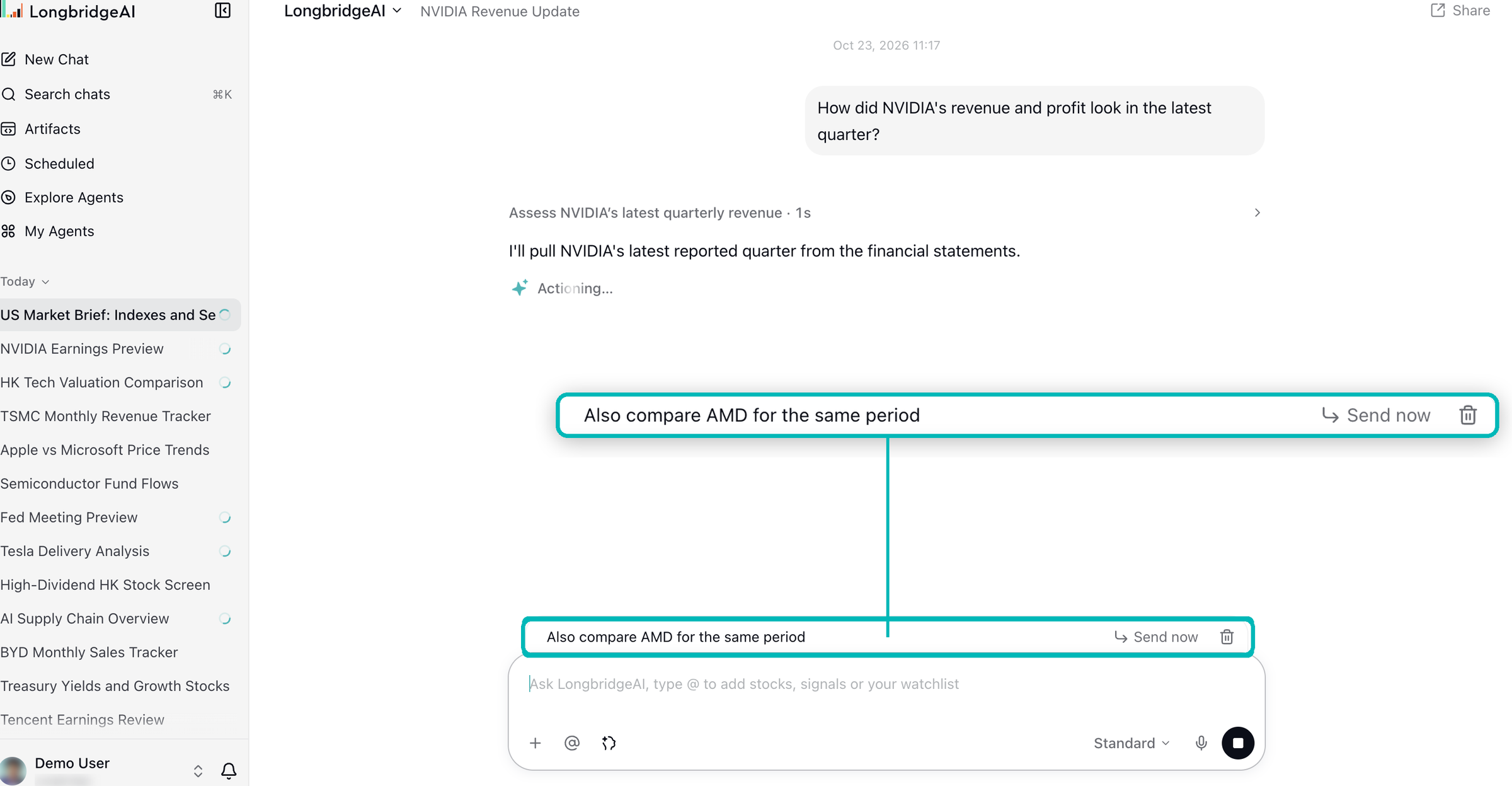
You can keep typing and sending while the AI answers. Messages are queued and sent in order once the answer finishes. You can remove a queued message, or choose “Send now” to stop the current answer and send that message right away. Note: Each queued message uses allowance as one question. This feature is available on the web version only.
Collapse the sidebar to icons and see conversation status at a glance
The sidebar can switch between expanded, collapsed to icons, and hidden, and remembers your choice. Conversations are grouped into “Last 7 days” and “Last 30 days,” and can be opened in a new tab or have their link copied. Each conversation shows its status, such as generating, new reply, waiting for you, or failed, and you are notified when a reply finishes after you leave the conversation. This feature is available on the web version only.

Search past conversations by keyword
Click “Search chats” in the sidebar or press ⌘+K to search past conversations by keyword. If nothing matches, you can start a new conversation with that keyword right away. This feature is available on the web version only.

See prices when you @ a stock
When you @ a stock in the input box, the list shows the company logo, name, and latest price. Expand a stock to choose whether to include its quote, overview, and financials for the AI. This feature is available on the web version only.

Open a stock panel from answers
Click a stock in an answer to open a stock panel on the right with its chart, key stats, and company profile. The stocks mentioned in the conversation appear as tabs at the top of the panel, so you can switch between them. This feature is available on the web version only.

Allowance usage in the account menu
Click your account name in the bottom left to open the menu, where you can see this week’s allowance usage, switch workspaces, and set the theme to light, dark, or follow system. The Settings page brings General, Preference Tags, Memory, Connectors, and Data & Privacy together in one place. This feature is available on the web version only.

LongbridgeAI
Improvements
- Reasoning Collapsed and Long Content Folded by Default: The AI’s reasoning is collapsed by default, with the title showing how long it reasoned. Tool calls can be expanded right in the card. Long questions and long code blocks in earlier messages are folded by default; click “Expand” to see everything.
- Conversation Titles and Safety Checks No Longer Use Your Allowance: The usage for automatically generating conversation titles and running safety checks on financial questions is now covered by the platform and no longer counts toward your allowance. This change is in effect on all versions.
- No Extra Verification to View Usage Overview: Viewing the usage overview on the usage page no longer requires multi-factor authentication; viewing usage details still does. This change is in effect on all versions.
Bug Fixes
- Live Data Web Pages in My Artifacts and Shared Pages: Fixed an issue where web pages with live data always showed “–” in My Artifacts and showed a not-supported message on shared pages. When others open a shared page, it now fetches the latest data under their own identity. Note: Viewing live data on a shared page requires signing in.
- Action Buttons Under Answers Always Visible Again: The copy, like, dislike, regenerate, and share buttons are shown at all times again, so you can give feedback whenever you want.
- Plan Not Activated After First Apple Pay Purchase: Fixed an issue where a plan was occasionally not activated after paying when buying a plan with Apple Pay in the App for the first time.
- Questions No Longer Lost When Coming from the Website: When you come to LongbridgeAI from the Longbridge website with a question and need to sign in first, the question is kept and sent automatically after you sign in.
- New Conversations in the Website Stock Screener: New conversations started in the AI on the Longbridge website’s stock screener page now keep using the stock screener Agent instead of switching to the general Agent. This fix applies to the AI on the Longbridge website.
- Conversation Page Details: Opening a conversation link directly now selects that conversation in the sidebar; headings in answers scale with the body text size; the quote button for selected text appears where you release the mouse; the “Confirm” button stays at the bottom when an AI question card has many options; and if part of a page fails to load, you can retry that part without affecting the whole page.
Usage Changes
- Plans Are Now Monthly Auto-Renewal Only: When buying a plan, only monthly auto-renewal is offered; annual billing is no longer available. This change is in effect on all versions.
- Release Notes Moved to the Longbridge Website: The release notes page in LongbridgeAI now redirects to the release notes on the Longbridge website, and new-version notices also follow the website. This change applies to the web version only.
My Agents and Workflow Building
New Features
- Lower Reasoning by Turn Count and Raise It After Tool Failures: Reasoning budgets now include “Downgrade after turns,” which drops to the lowest thinking level once the number of conversation turns exceeds the set value, and “Upgrade after failures,” which raises thinking depth by one level once tool calls fail the set number of times (not after a downgrade). The thinking level chosen in Auto mode is recorded in the run log.
- Disable Capabilities for the Current Turn: Agent nodes now have “Disabled capabilities this turn.” Pass a variable listing tool or Skill names, and calls to them in this turn are rejected. They are still provided to the model, so prompt caching is not affected.
- Set the Simplified/Traditional Chinese Conversion Target Separately: The new system variable
sys.zh_convert_languagelets you set the Simplified/Traditional Chinese conversion target for answers independently of the interface language. - View Artifacts from Conversations in Agent Logs: Agent logs now let you view and download Artifacts produced in conversations, and Artifacts with live data fetch their data normally.
Improvements
- Redesigned Workspace and Knowledge Base Pages: Agent Plaza cards and tabs have been redesigned; lists support filtering by status and batch actions; knowledge base documents show character counts and retrieval counts, and can be sorted by upload time, character count, or retrieval count.
- Custom Connectors Shown as Cards: The custom connectors page now uses a card grid, with a new edit panel and connection guide. The authentication method is detected automatically by default and can also be set manually, and the reason is shown when a connection fails. Note: The number of custom connectors depends on your plan.
- Publishing Reviews No Longer Use Your Allowance: The usage for automatic reviews when publishing Agents and Skills is now covered by the platform and no longer counts toward your allowance.
Bug Fixes
- Answers in Workflow Mode: Large language model answers in workflow mode stream word by word again instead of appearing all at once.
- Context Compression: When compressing context, the current question is kept as written and only earlier history is summarized.
- Iteration Limit Reached: When an Agent runs out of iterations, it now reports a clear error instead of ending silently.
- Chatflow Answer Node Output: After a chatflow runs successfully, the answer node’s output is no longer rewritten.
- Tool Search: When tool search is enabled for a node, activated tools now provide their full definitions to the model.
- Knowledge Base Retrieval Settings: Fixed an issue where the weight and Rerank checkboxes could not be selected and turning off the score threshold did not take effect after saving.
- Linear Tool: Fixed an issue where the Linear tool returned a 400 error with OpenAI models.
Usage Changes
- Advanced Reasoning Settings Limited to Longbridge Plans: Reasoning budgets, per-turn prompts, disabled capabilities for the current turn, and Auto thinking level on the start node can now be configured only in workspaces on a Longbridge plan.
- Workflows with Cycles Can No Longer Be Published: Publishing is blocked when a workflow contains a cycle, to prevent crashes at run time. Note: Saved workflows with cycles must be edited before they can be published again.