
Step-by-step Guide to IPO Subscription
IPO Subscription Portal
You can initiate an IPO subscription in the Longbridge App. Download Longbridge App
IPO Subscription Process
1. Launch Longbridge App, tap “Market” - “IPOs” either in the middle or at the top of the page to enter the IPO list page.
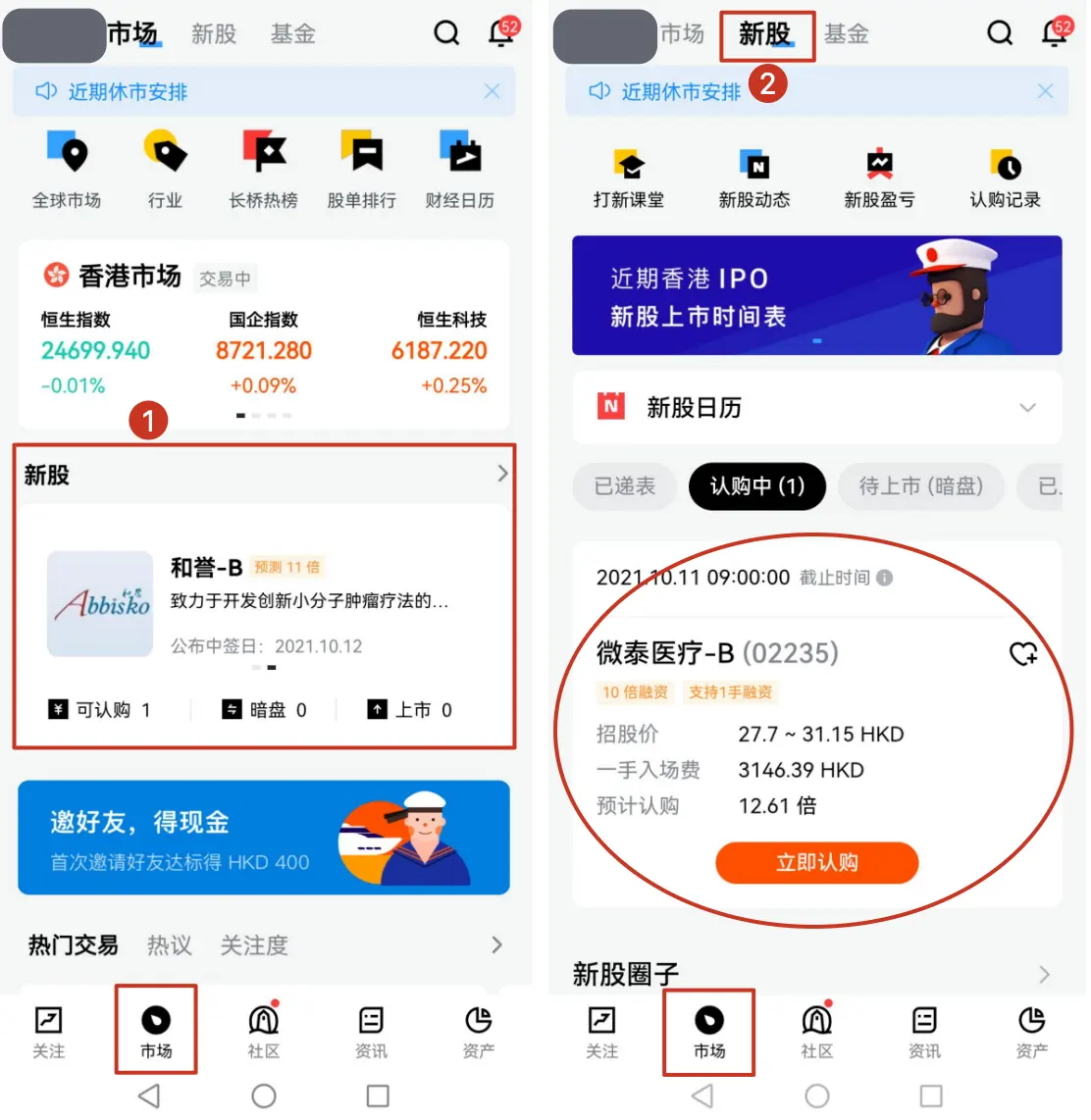
2. Tap the “Subscribe” button on the corresponding IPO list page or in the IPO calendar to enter the subscription page.
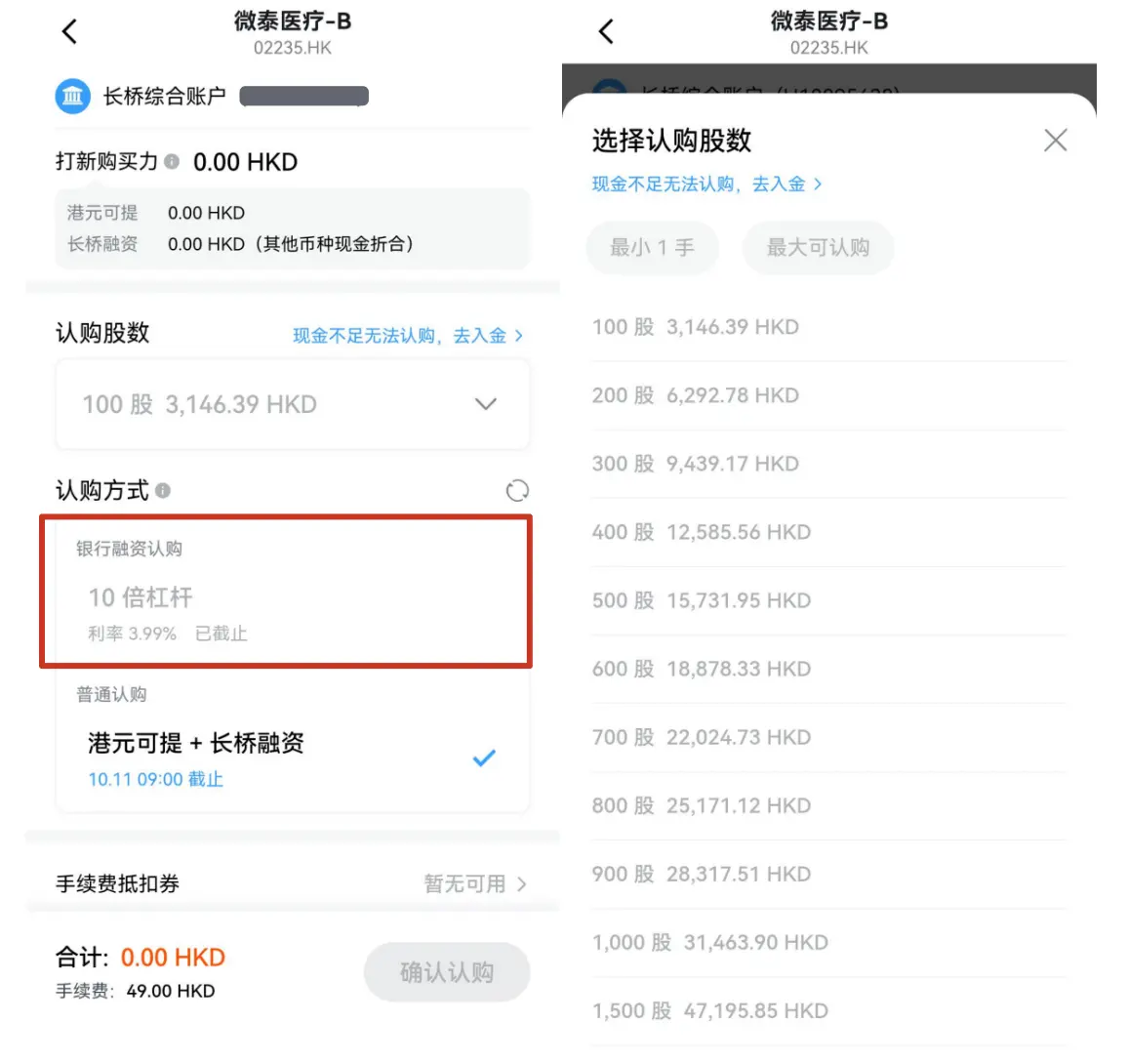
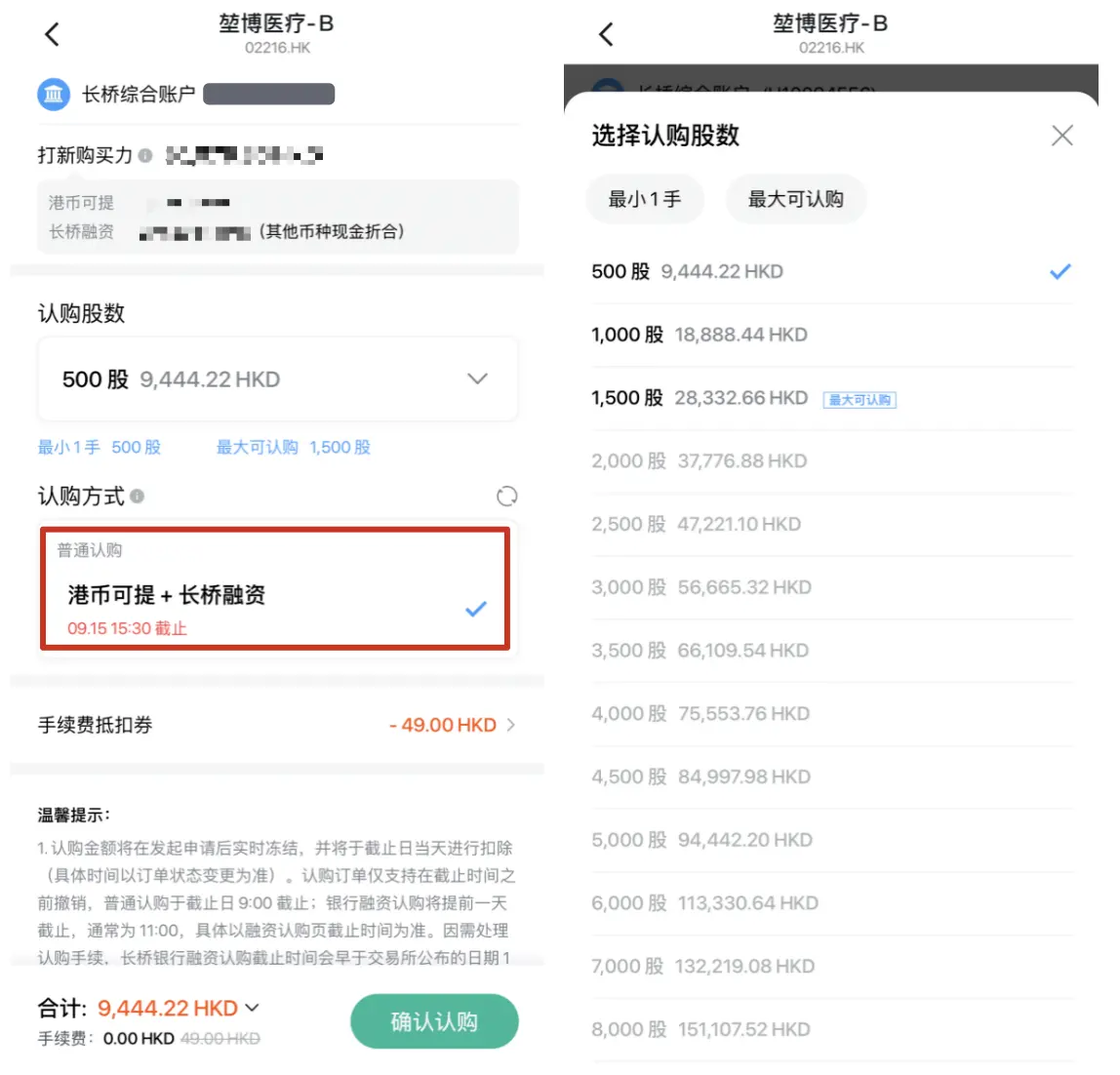
There are different subscription types according to the asset holdings at the time of application for subscription: as shown in ① and ②. You can select the number of shares you would like to subscribe.
① Financing
② Standard
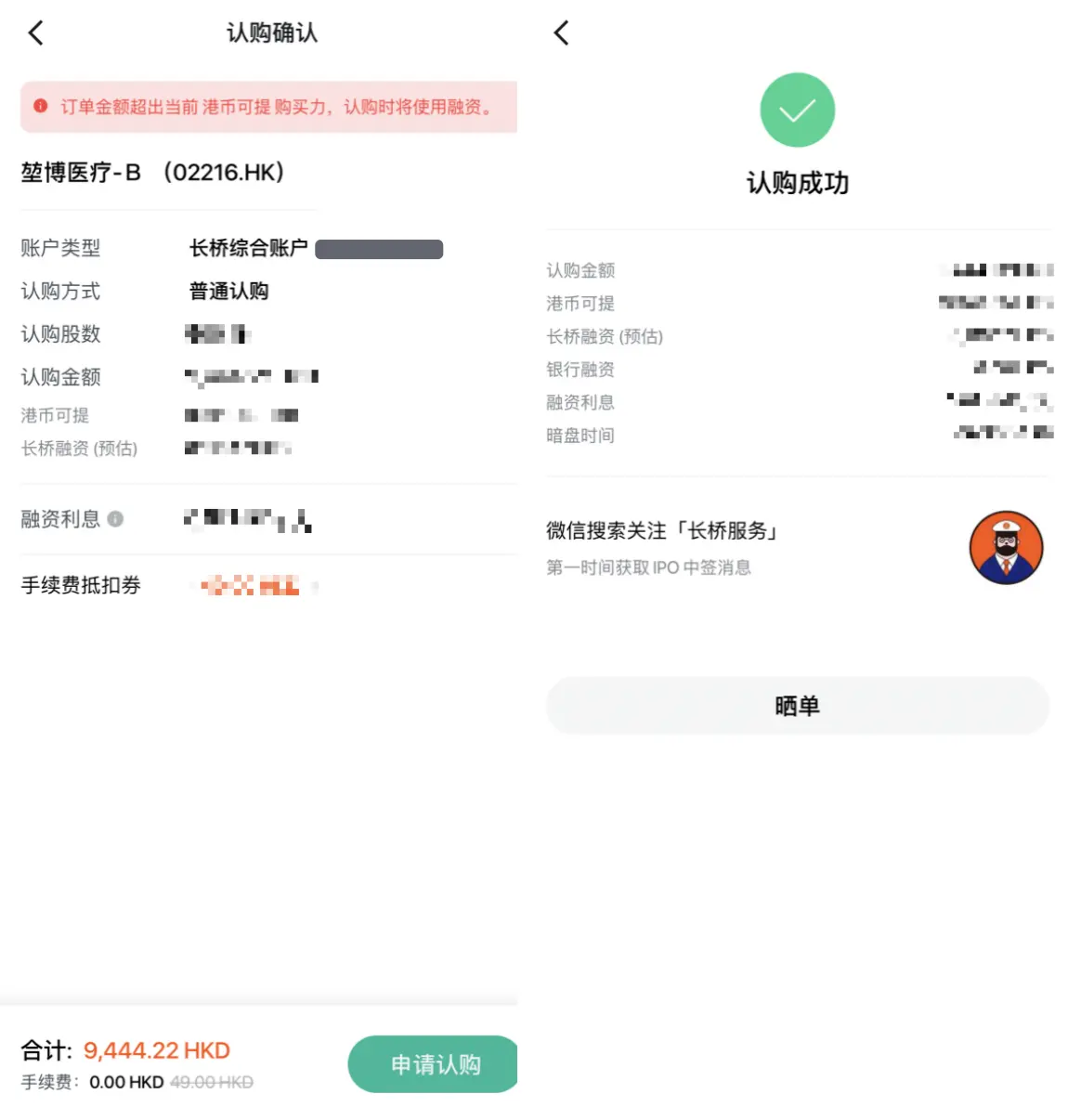
3. Tap “Confirm” at the bottom right corner to confirm and submit your IPO subscription order.
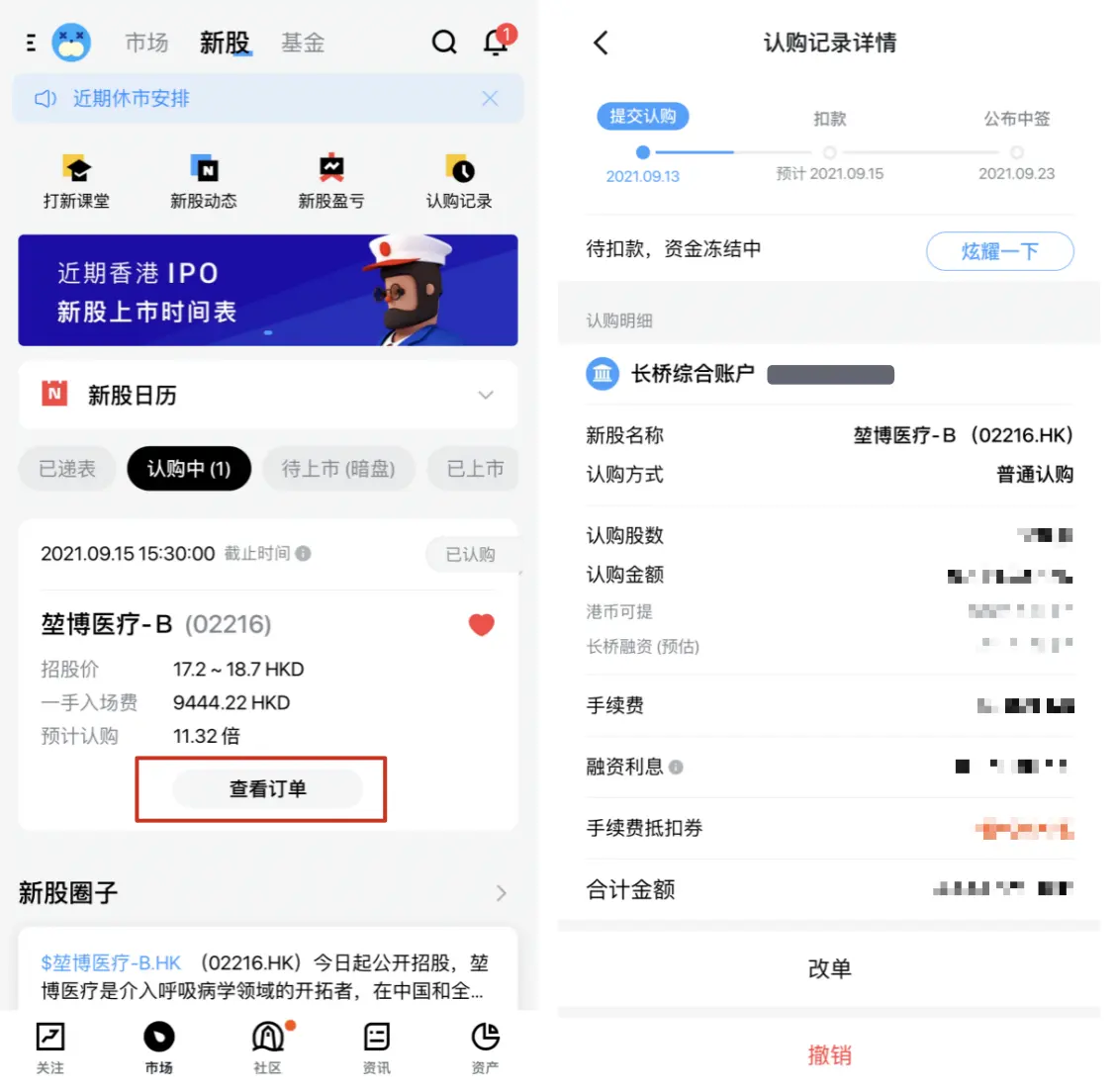
View Subscription History
You can tap “Orders” on the IPO page or tap “View Order” in the IPO calendar to view your subscription orders.
Was this helpful?